New article
Recently updated
Setting up the Audit Module

To make the operation and reporting in the Audits module as effective as possible there are some areas that need to be set up before creating and scheduling an audit.
Log on to Workbench in your own name and select the Audit Module from the Module Icon Bar or from the Module menu.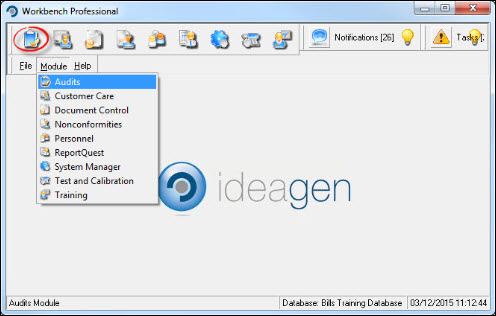
Select [Settings] from the menu bar.
The Audit module allows many audits to be scheduled and run, from internal ISO audits carried out by internal staff, client audits where a customer will want to check out the standard of the quality system to the annual or bi-annual re assessment of the Quality standard. Setting up the information for audit types, results descriptions and other relevant information is accomplished through the [Settings] menu.
Audit Types
Although not mandatory, Audit Types will help in speeding input of information and retrieval of data in reports. Select [Audit Types...] from the menu and press [New]. Complete the form and [Save]. Repeat for each Type.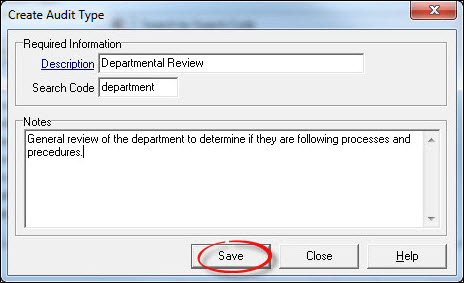
Assessors
If, as part of the overall audit plan of the organisation, external audits are to be included (as well as internal audits) the relevant details about the assessment bodies can be captured through Assessors. Auditing by a number of organisations, from ISO 9000, Health and Safety, Environmental etc. as well as more industry specific assessments can be included.
Select [Assessors...] and [New]. Complete the Assessor form and [Save]. Repeat for each Assessor.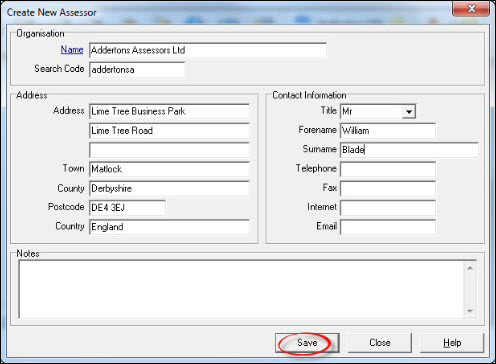
Result Description
To enable standardisation in the response to audit questions, there is a facility to create a drop down list of standard or common “Result Description” terms.This should aid the understanding and qualification of answers given in an audit. The order in which the descriptions appear is in alphabetical order. Should you wish for the result descriptions to appear in a particular order, for example ordered by severity, use the search code, and enter the Description giving the search code a corresponding number to the importance of severity.
Select [Result Descriptions...] and [New]. Complete the Result Description form and [Save]. Repeat for each Description.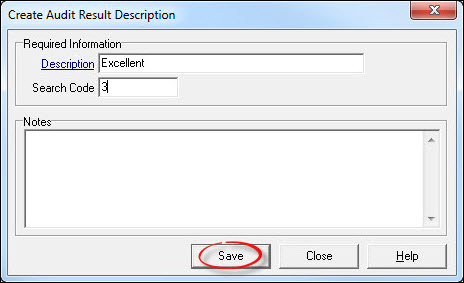
Clients & Customers
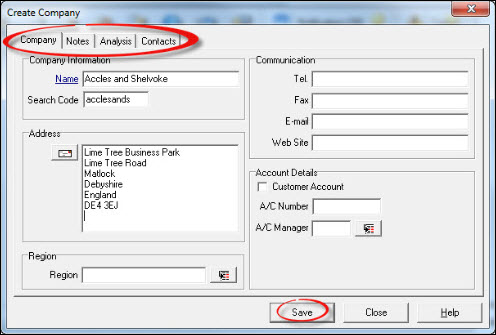
If the Customer Care Module is in use and been set up correctly, this information will already be in place, and any changes made here will reflect in the Customer Care module as well. Details of Companies or Individuals are entered and updated in this section. Customers can be individuals (for Environmental Standard ISO 14001 these could be Stake Holders rather than true Customers) or Companies.
The details are separated across four tabs:-
- Company Details – name etc.
- Notes
- Analysis – How your company wants to see extra information
- Contacts – Details on the contacts – with further Analysis and Contact Notes
Searching for a company can be done by search code or within name, and filtering can be done on the type of customer (as a company or as an individual).
Select [Clients and Customers...] and [New Company] or [New Individual]. Complete the form and [Save]. Repeat for further Companies or Individuals.
Suppliers
It is possible to plan and schedule audits against external suppliers and include them as part of the overall audit plan. Suppliers of product or service to an organisation can be recorded and recalled through Workbench. Any discrepancies can be reported through the NCR module, and audits to be carried out against a supplier can be scheduled through the Audits module.
Select [Suppliers...] and [New]. Complete the form, adding information to the "Analysis" and "Contact" tabs if required. [Save] and repeat for further Suppliers.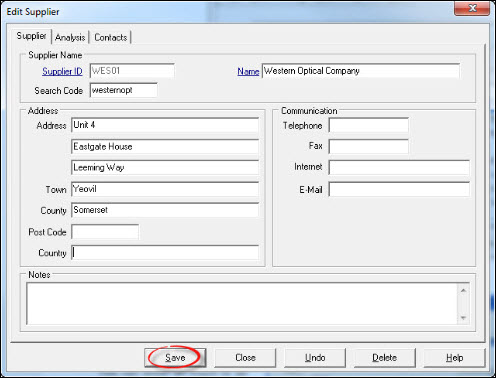
Categories & Checklist Libraries
When creating an audit template, the Workbench Audit module will allow for the creation of categories and checklist items in a library so that they may be used in many different audits. These elements are stored in a library of Categories and Checklist items available to auditors when compiling templates, and editing or running audits.
Select [Category Library...] and [New]. Complete the form and [Save], repeating for further categories if necessary.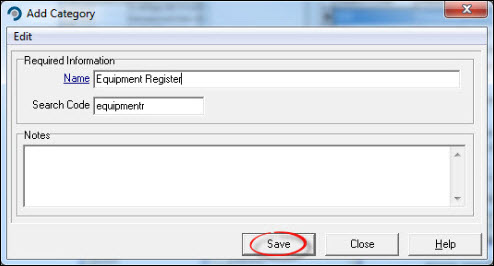
Select [Checklist Library...] and [New]. Complete the form and [Save], repeating for further checklists if necessary.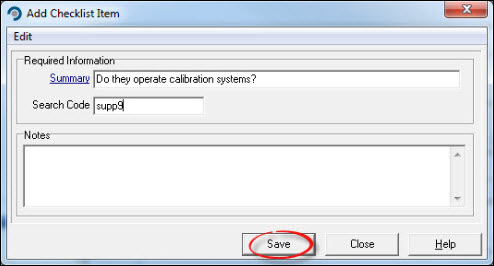
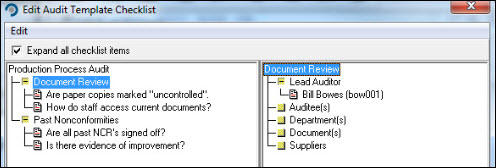
Note that from the "Edit" menu when adding categories or checklists, more specific details about the department, auditee, supplier and related documents can be added. This information will be included when the item is selected for inclusion in the relevant audit.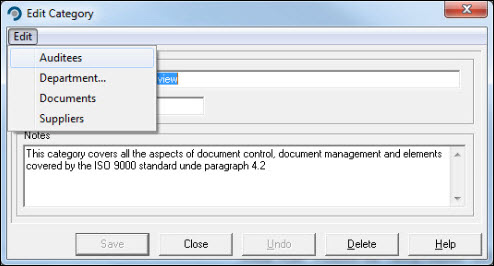
Creating an Audit Template
From the [Audit] menu select [Audit Template...]. This lists all the current Audit Templates in the system and allows creation of new templates.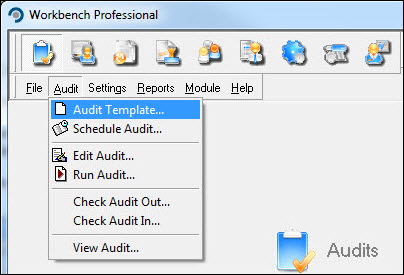
Select [New] to create a template. Note the mandatory fields are “Name” Field and “Duration” (blue, underlined). The Title has to be unique. Analysis, Departments and Scope can also be included via the appropriate tabs. [Save] the new template.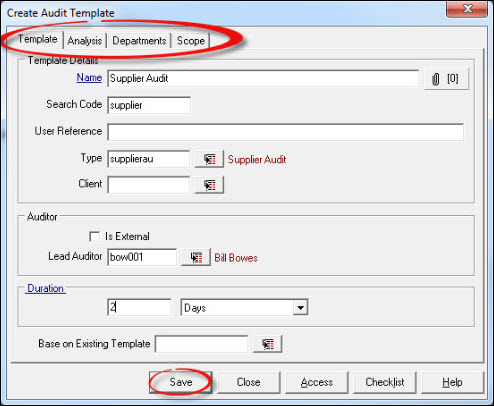
To save time and unnecessary repetition it is possible to create a template based upon an audit template already in the system.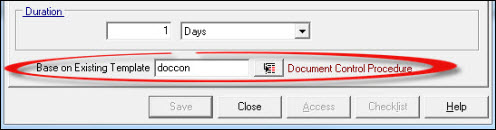
Access to Audits
The ability to view and modify an audit can be strictly controlled, over and above the controls applied under the System Manager module. Access to an audit is best determined at the template stage, but can be modified for each individual audit. The capacity to edit an audit i.e. add or modify questions at any point in the audit will need to be given at this stage. The person nominated as lead auditor will have this facility by default. Any subsequent auditor assigned to a particular question will also need edit rights and needs to be added to the “Edit” Access.
Select [Access] from the Audit Template.
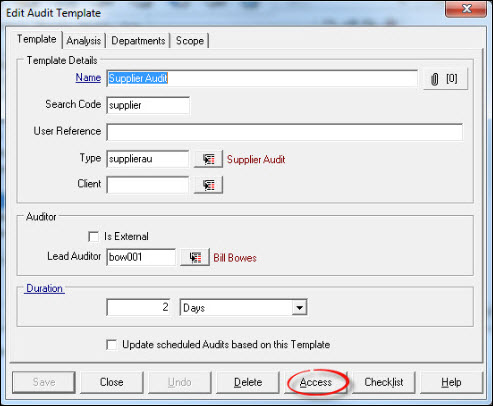
Proceed to add or remove users to each of the access tabs and [Save] when complete.
Setting up access levels can also make use of the Personnel Groups created in the System Manager module.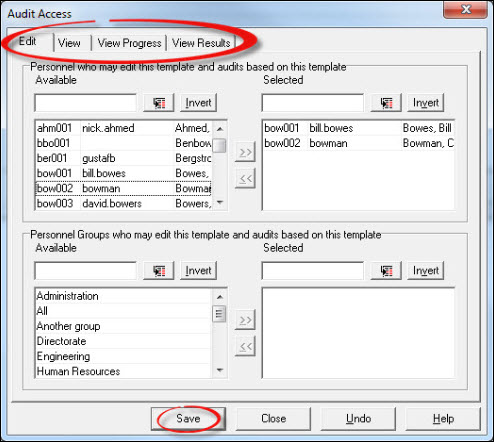
Compiling Category and Checklist items in prepapration for an Audit
This is the area where questions or checklist items are entered to build up a complete audit. Sub headings, or categories, can help to give a more regulated or structured audit. However an audit can be created and scheduled without any checklist items, allowing freedom for the auditors to generate their own questions at any time before or during the audit.
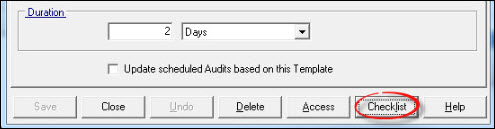
From the template select [Checklist].
Additional categories and/or checklist items can be added to the audit by using the right mouse button. These can be brand new or existing ones selected from the libraries.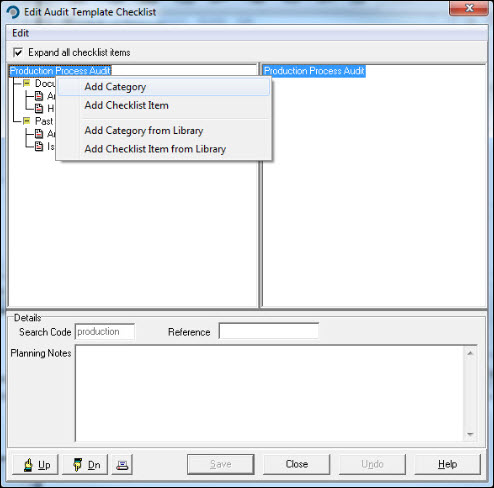
Highlighting each category or checklist will display, for each Category and Checklist item, details such as Lead Auditor, Auditees, Departments, Documents and Suppliers, to which information can be assigned via the right mouse button.