


New article
Recently updated
Checking a document out of Workbench and checking in a document of a different type

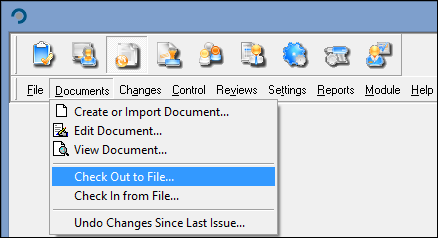
In Document Control go to [Documents | Check Out to File].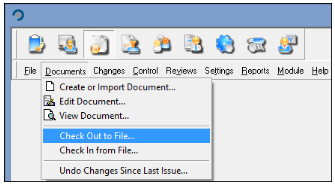
Double-click the document you are checking out, or alternatively click on it and then click the [OK] button.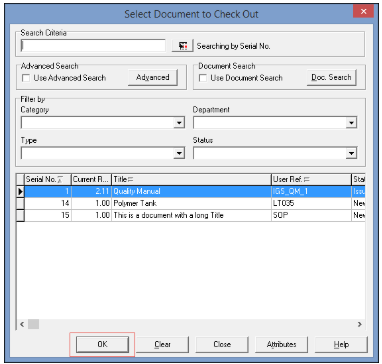
Assign the CRQ by clicking it and then clicking the [Assign] button. Then click the [OK] button.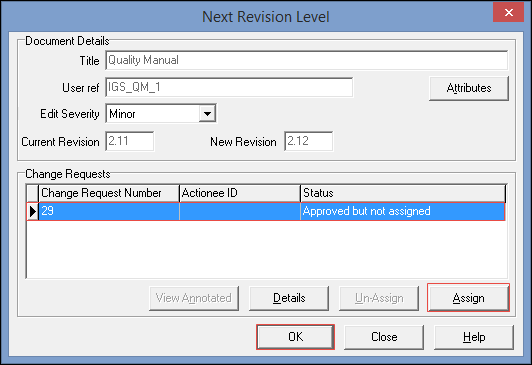
On the Check Document Out To File dialog click the [Check Out] button.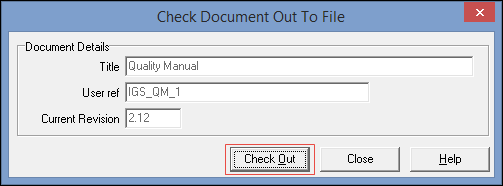
Save the file and note that the document Title is retained.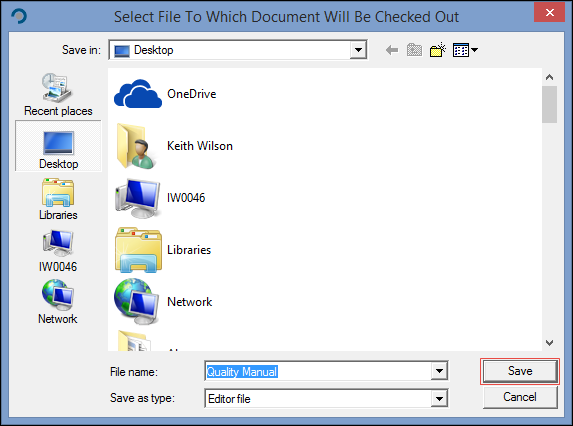
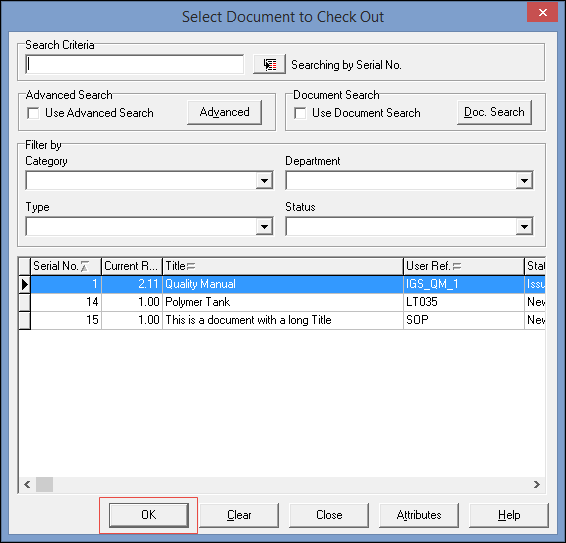
You can now close the Select Document to Check Out screen. To check the replacement file in, go to [Documents | Check In from File] and double-click the document, or alternatively click on it and then click the [OK] button.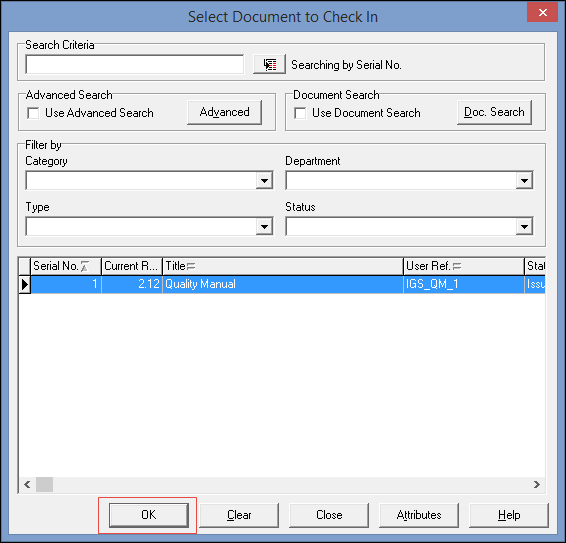
Don't just click the Check In button!, instead click the [Browse] button (button with three dots).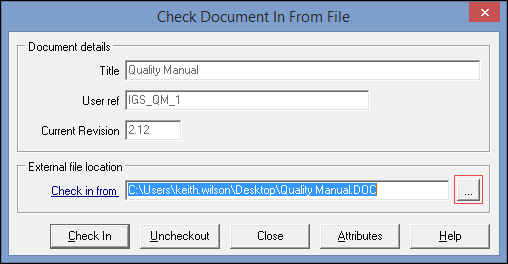
Use the [Files of type] drop down list to select [All files] and then locate the replacement file and click [Open].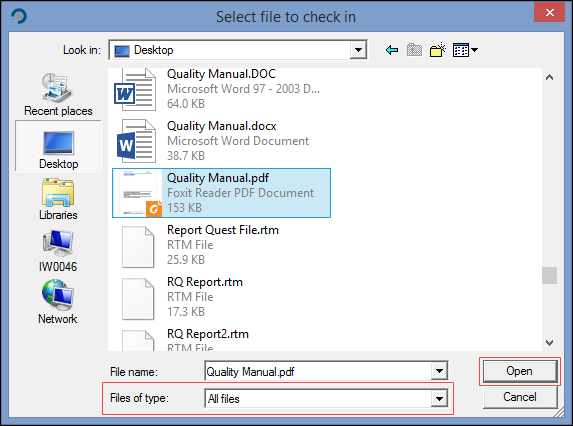
Once the correct file appears in the External file location: Check in from field, click the [Check In] button.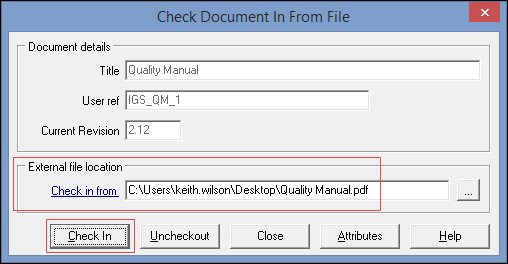
On the Document Attributes screen, check in the Advanced Options section that the Extension and MIME Type fields are displaying the correct information and then click [Close].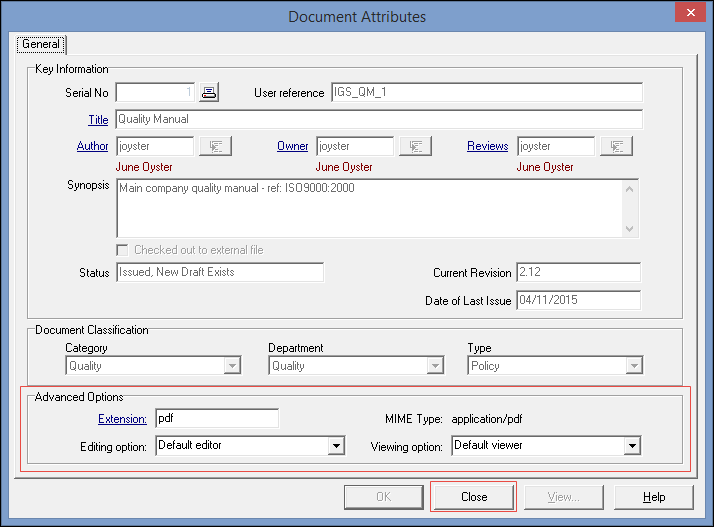
On the Edit Complete screen click the [Done] button and then check the Mark document ready for approval? checkbox, and then click the [OK] button.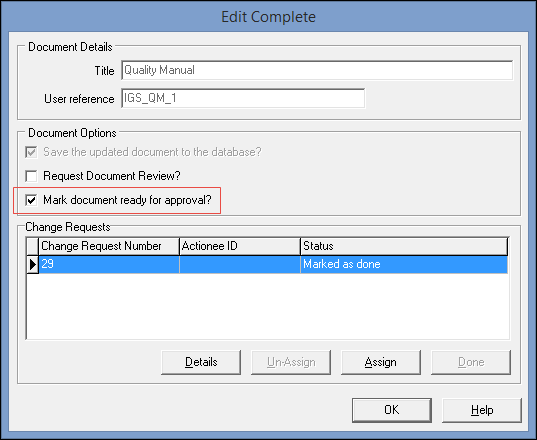
You then have the Confirmation dialog for Approval: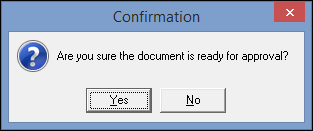
And a dialog asking if you wish to Delete the source file (the one you just checked in).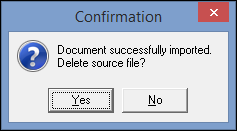
Finally, close the Select Document to Check In dialog.