


New article
Recently updated
Creating Template Tests for Test and Calibration

Create a Test Template
Each individual piece of equipment or event will need to be tested and this could be one “test” with all the measurements entered into it, or, if the test can be applied to different pieces or types of equipment, then a separate test can be created and added to the list of tests applied to one piece of equipment.
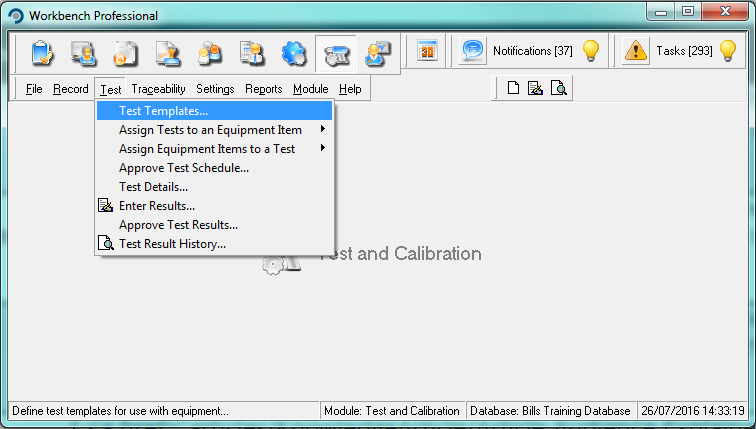
Select [Test] from menu headers and [Test Template] from menu drop down list.
Each individual piece of equipment or event will need to be tested and this could be one “test” with all the measurements entered into it, or, if the test can be applied to different pieces or types of equipment, then a separate test can be created and added to the list of tests applied to one piece of equipment.
Select [Test] from menu headers and [Test Template] from menu drop down list.
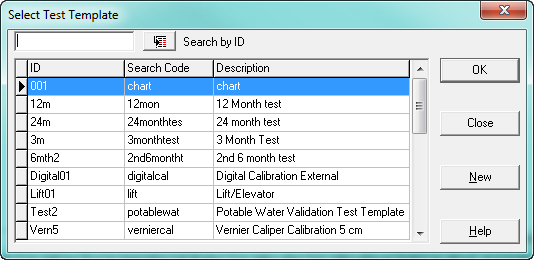
Select the [New] button to create a new template.
Give test a unique Template ID Code and a name in the Name field.
This should be generic to the equipment type for all models requiring this test and the same set of measurements.
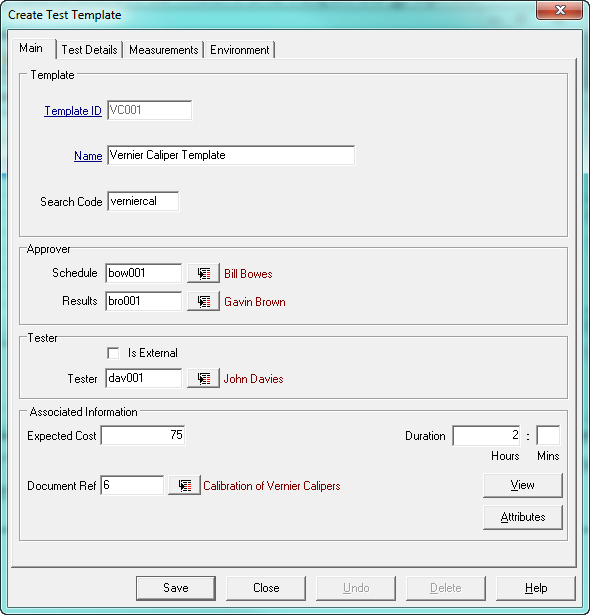
Identify the user who will be expected to Approve the complete plan of Scheduled Tests created each time this test template is used if required (Optional).
Identify the user who will be expected to Sign off the Results for each of the completed tests once those tests have been carried out (Optional).
Identify the Tester who will be expected to carry out the actual test.
If the test is to be carried out by internal staff, select from personnel list, or if the equipment is sent for external testing, put “x” in box marked external and select a supplier from list provided.
Enter the Document details, or select from the DocList, the document which would be the SOP in how to carry out the test. This will usually be a controlled document from within Workbench.
Enter the expected cost and duration of test, and identify the document or procedure associated with this test.
These fields are not mandatory but could be very useful in managing the time and cost of equipment downtime and repair.
Test Details Tab
Test Description denotes the purpose and detail of the test.
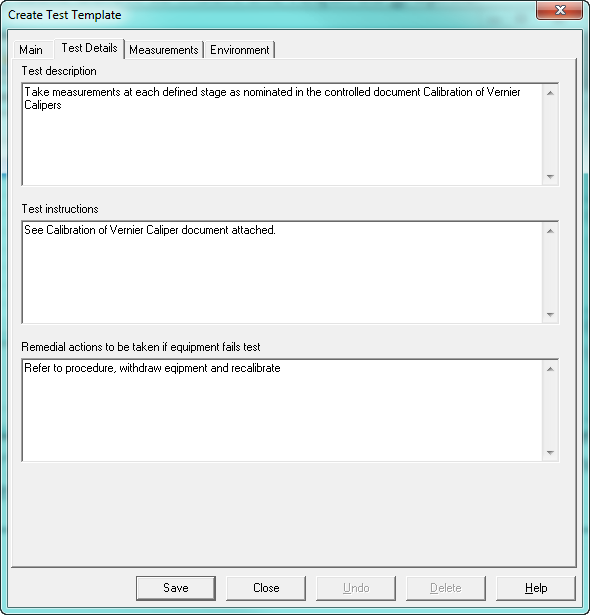
Test Instructions denotes the steps needed to perform the test.
This can refer to a document held in Workbench or refer to some other procedure.
The actual test detailed instructions can be copied to here from a document.
Remedial Action denotes action to take, in the event of the equipment failing to meet standards set in test.
This Remedial Action will be presented in the Failure screen, after the test has been completed, if a test fails one of the criteria set.
Measurements Tab
These are the detailed measurements to be taken when the equipment is to be tested.
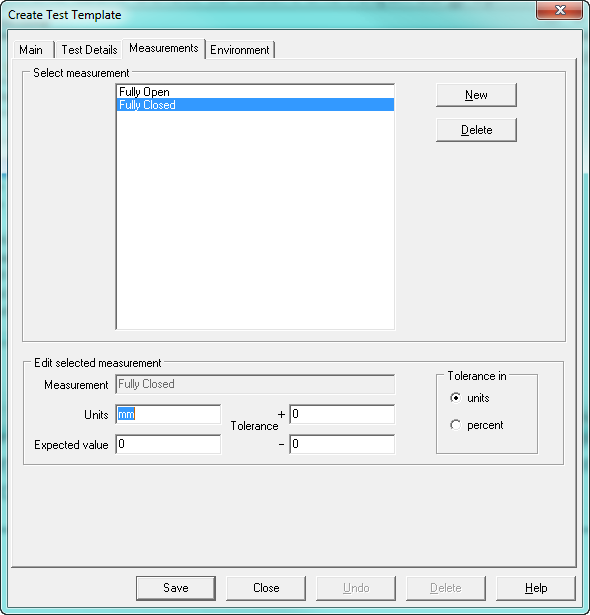
Select [New]
In the “Edit selected measurement” box,
create a Measurement name,
define the Units of measurement,
the Expected value, if it was perfect,
and tolerance allowed when testing, expressed either as a unit of measurement or as a percentage.
define the Units of measurement,
the Expected value, if it was perfect,
and tolerance allowed when testing, expressed either as a unit of measurement or as a percentage.
Repeat the above steps for each and every measurement needed to make sure the equipment is calibrated correctly for use.
NB.
Any measurements established at this stage, i.e. the test template, can be overridden or added to later when this template is used to schedule individual tests.
Because of this it is well worth exploring potential areas of overlap in the tests and measurements you normally conduct.
Identifying tests that have just one measurement in common, and using a template to set that up, can save significant amounts of time without any sacrifice of flexibility in defining an individual test or test schedule.
Environmental
Use this if it is important that the actual Environmental Variable is critical to the test.
In most cases, as long as the items to be tested are allowed to gain the ambient temperature of the test area for 30 mins before the test then normally no variable is needed in the Environmental section.
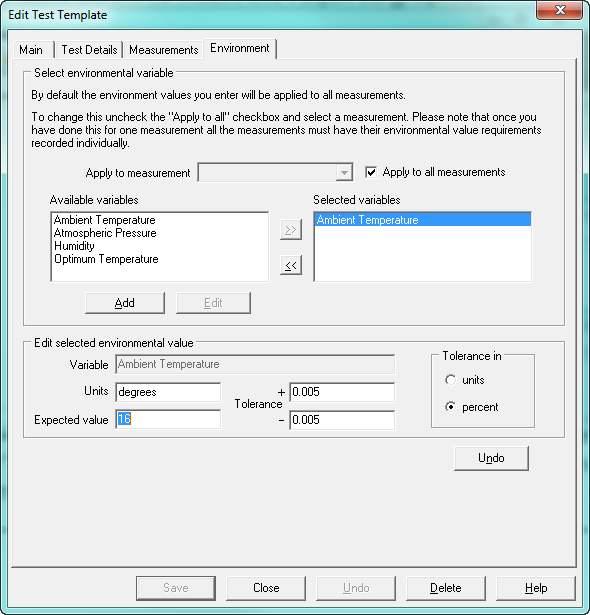
In a composite test for an equipment item, where many different measurements and tests are being applied in the same test then it is possible to apply environmental variables differently depending on the measurements being taken.
De-selecting the Apply to all measurements box allows the choice of variable being applied to different measurements.
Select [Save] and the Template will now be available to be used in creating Test Schedules.