


New article
Recently updated
Schedule Tests on Equipment

Scheduling of Tests to Equipment
Having set up the Tests as Templates, each piece of equipment needs a test or tests scheduling against it, using one of these test templates.
Select [Test] menu header
And then [Assign Test to Equipment] item and
then [New Schedule]
Having set up the Tests as Templates, each piece of equipment needs a test or tests scheduling against it, using one of these test templates.
Select [Test] menu header
And then [Assign Test to Equipment] item and
then [New Schedule]
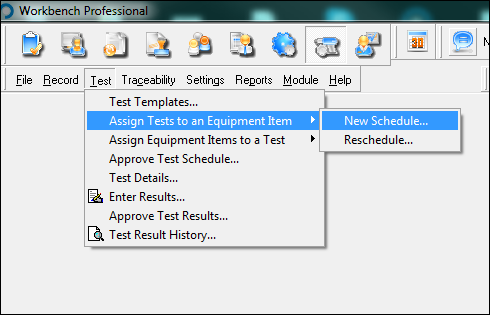
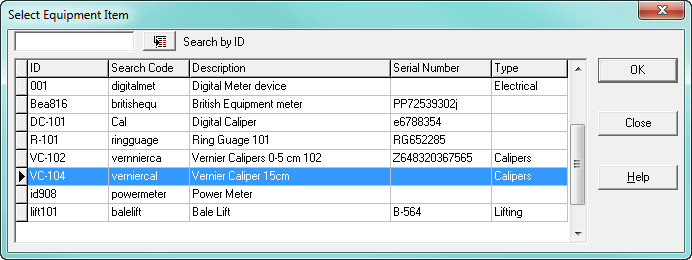
This will ask you for the piece of equipment to be tested.
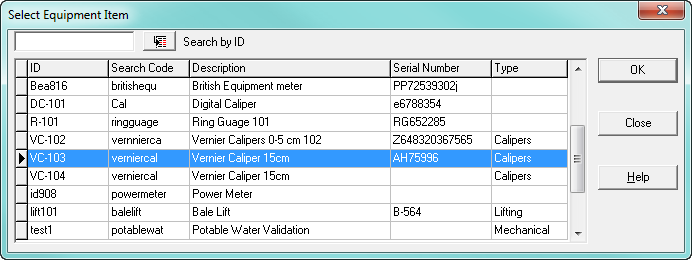
Select the Equipment Item and press [OK].
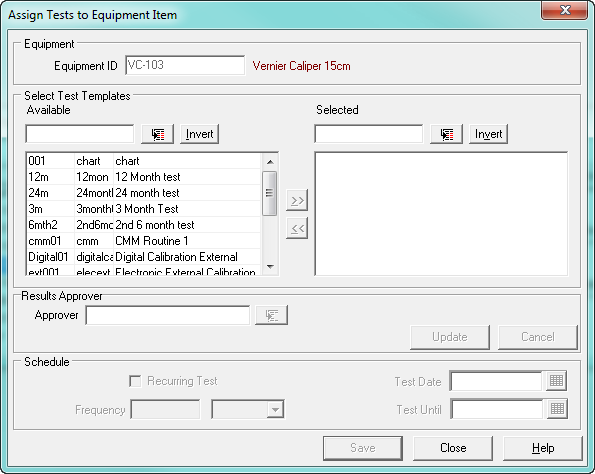
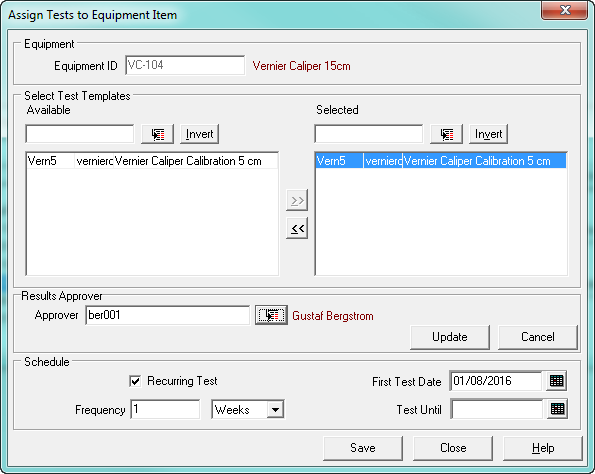
You will then be presented with the [Assign Tests to Equipment] screen.
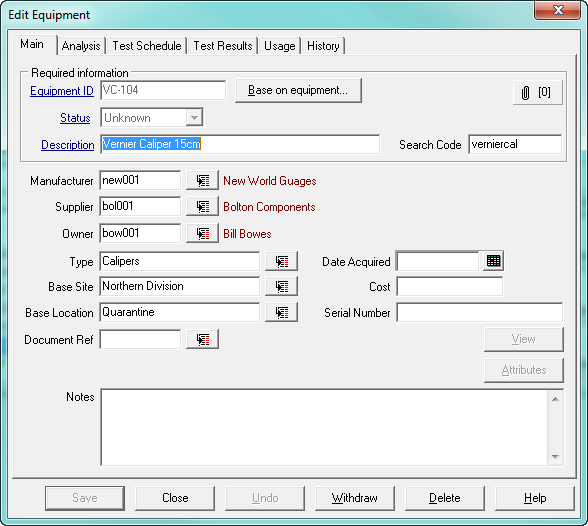
(Alternatively tests can be assigned to equipment directly from the equipment record itself. Select the [Equipment Item] and then select the [Test Schedule] tab. This will present the same “Assign Tests to Equipment” screen as above).
Select the Test Template to use and move it to the right hand box using either the arrows between the two boxes, or double click the left mouse button.
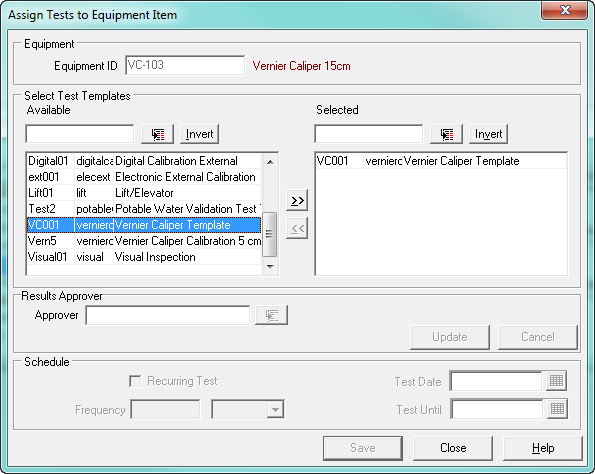
Highlight each test you want to run on the same day, and select the “Test Date”.
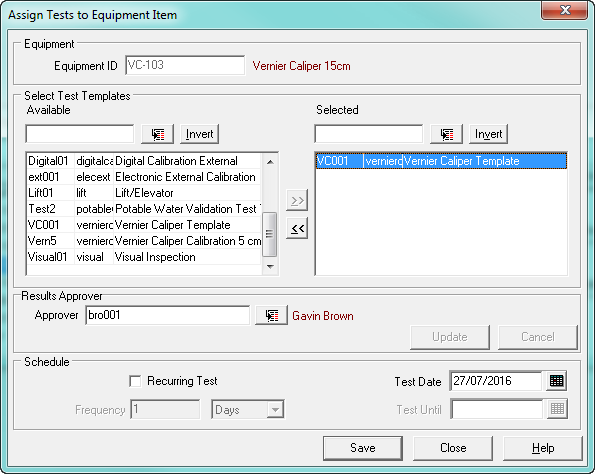
If the Results Approver has been defined in the Test Template, this users name will be automatically created in the Results Approver box. This can be changed here, either remove the Results Approver or change the results Approvers name.
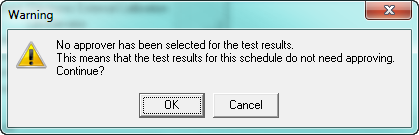
Removing the Results approvers name will mean that the tests will NOT be sent for Approval, but will be closed out as soon as completed.
If the test is a recurring test i.e. the equipment needs to be tested on a regular basis (daily, weekly, monthly or annually), then select the [Recurring Test] button.
This will open the “Frequency” dialogue where you can decide how often the equipment is to be repeat tested. If a regular schedule for the coming year is to be planned, then a final date can be entered into the “Test Until” Box.
If the test is to be scheduled on a regular basis, but the next test is to be scheduled from the date of the last test, then do not complete the “Test Until” box.
This will put the test in a list under “Reschedule” menu item, once the first test is complete.
Reschedule a recurring test
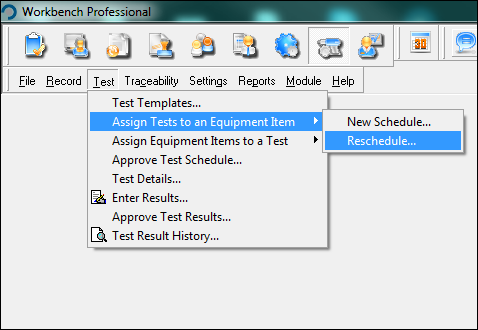
Once the first test is complete, select the “Assign Tests to Equipment” menu item, but then select the “Reschedule” menu item. This will present a list of all the equipment items waiting for rescheduled test to be allocated.
Select the equipment item, then select the Test, and insert a new date for the next test.
Each time a Test is completed, then a new one will be available to be scheduled.