


New article
Recently updated
Running a Scheduled Test

Running a test.
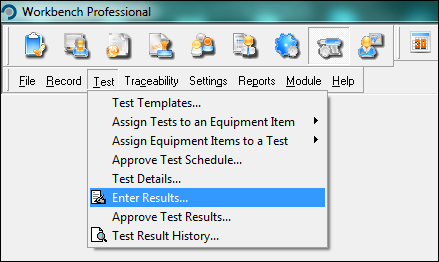
Select the [Test] Menu
and select [Enter Results] from the drop down list.
Highlight the relevant test
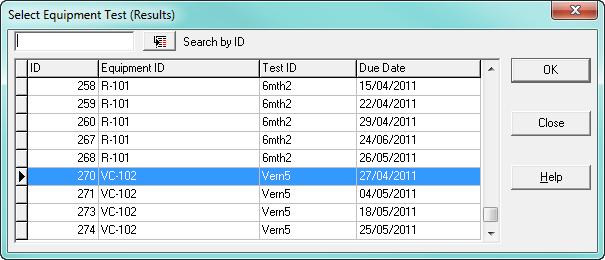
and select [OK].
The Enter Test Results dialogue screen will be presented.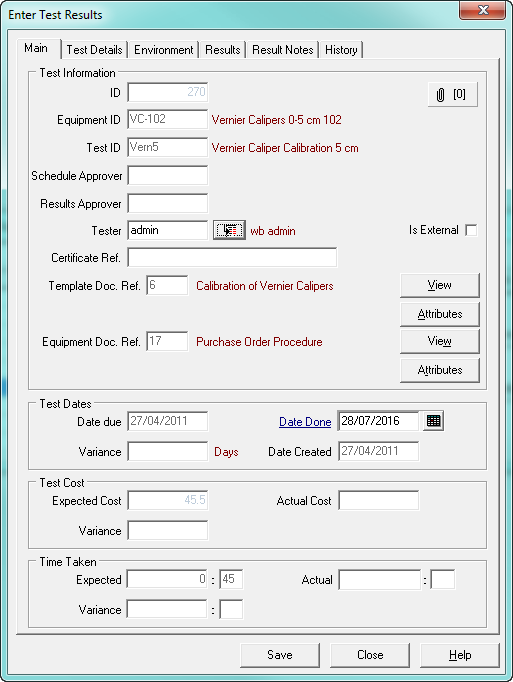
Ensure that in the Test Dates Date Done box has today’s date entered into it, and details of cost of test and the time taken to perform test are entered before saving the test details.
NB If the result of this test is to produce a certificate, then the certificate number must be entered BEFORE the test is completed and saved.
Select the [Test Details] tab which explains what the test is for (Test Description), what measurements to take (Test Instructions), and what action to take if the tests fail to meet the define standards (Remedial Actions) .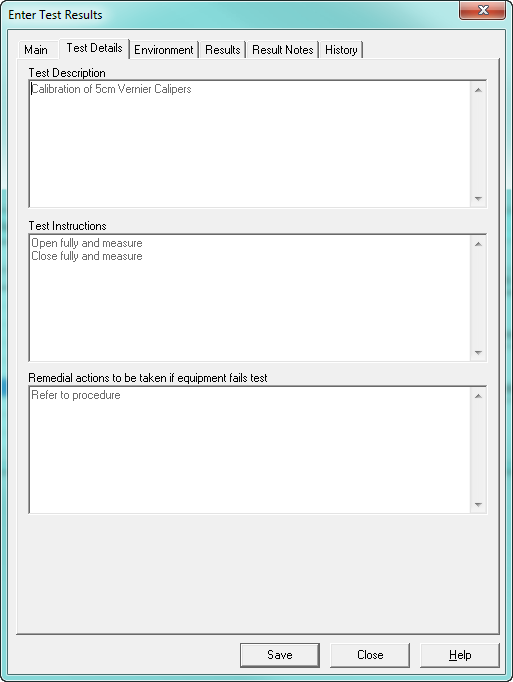
Select [Environmental] tab and select the required variable. The cursor will automatically be positioned in the Value recorded field.
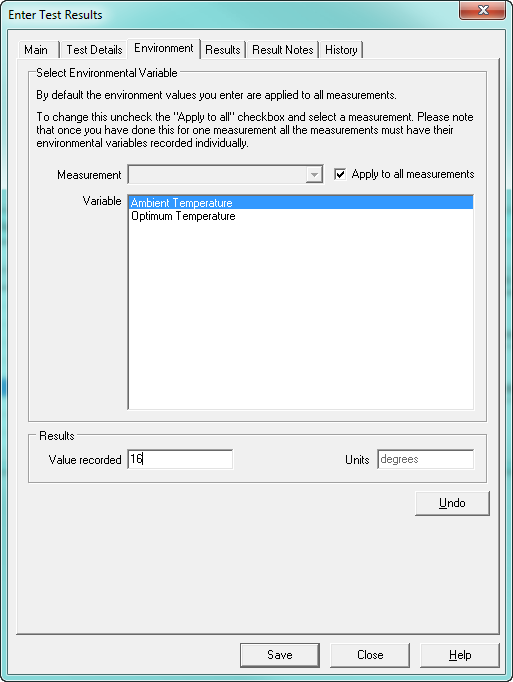
Enter the actual recorded value.
If the "Apply to all measurements" was selected in the Environment section, then each Environment parameter will have to be recorded for each test measurement entered.
Select [Results] tab, click over the required measurement to highlight it. The cursor will automatically be positioned in the Value recorded field.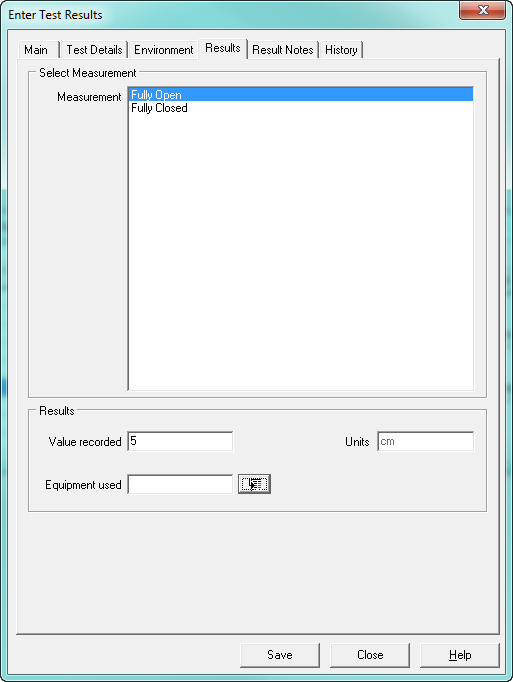
Enter the actual recorded value.
(Note that you have to take the actual measurement, as the Test and Calibration Module does not show what the value should be at this stage.)
Move to the next item of measurement to enter the test result details.
Enter the actual recorded value.
Repeat until ALL measurements have been entered.
If the "Apply to all measurements" was selected in the Environment section, then each Environment parameter will have to be recorded for each test measurement entered.
If required, move on to the [Equipment Used] field and enter the ID of the equipment used to perform the test, or click the Search button and select from the search grid.
Select the [Results Notes] Tab and enter any free text describing any abnormalities or observations.
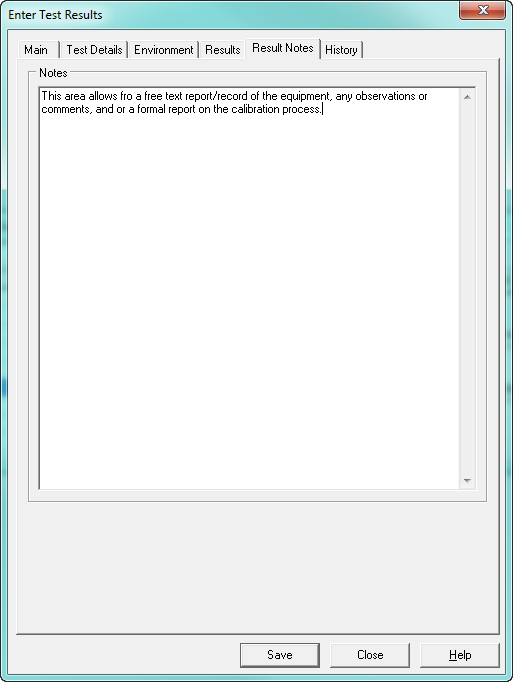
If you have finished entering all measurement results and any associated environment readings, click [Save].
This will bring up a confirmation screen to enable you to amend any results if you have entered them incorrectly.
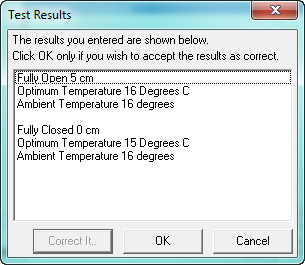
Select [OK] if all the values are as entered.
From the results entered, Workbench Professional will compute whether the equipment has passed or failed the test, or if the test is invalid, because one or more measurements were performed whilst an associated environmental variable was out of range.
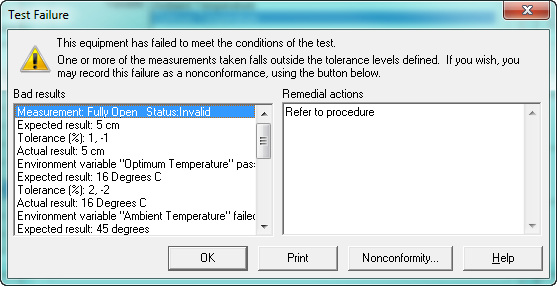
A Nonconformity can be raised to get the equipment removed, corrected or retested, should the equipment fail a test, by selecting the “Nonconformity…” button.
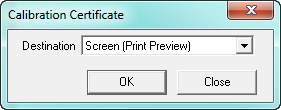
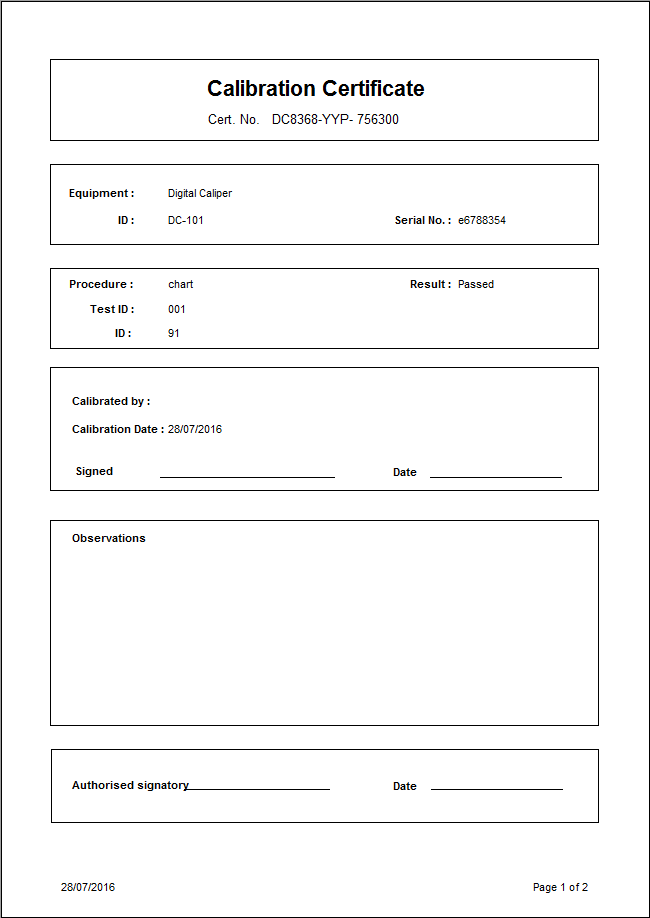
If the Test were carried out correctly and the results were within the permitted ranges then the equipment will have passed the test and a Certificate can be printed.
NB.
If the result of this test is to produce a certificate then the certificate number must be entered BEFORE the test is completed and saved.