New article
Recently updated
Creating a New User in Workbench

From the Personnel Module select [Record] [Personnel] from the menu.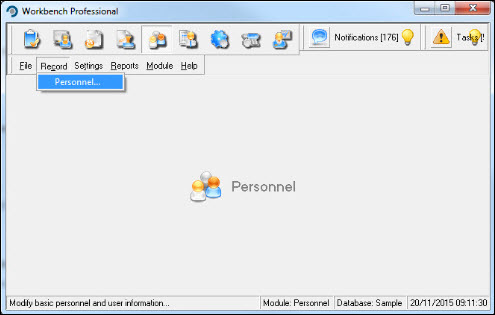
Select [New]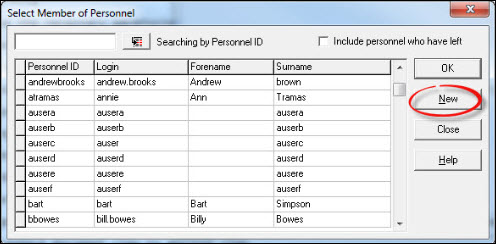
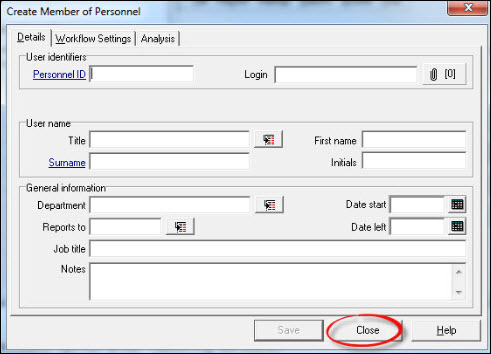
On the [Details] tab of the "Create User" window two mandatory fields exist for the Personnel Record, which are distinguished by their blue underlined text (Personnel ID & Surname). Upon entering a Personnel ID and Login, the Password fields become visible. Passwords do not have to be entered at this stage but is recommended. If a password is not created, the user can log in to a database without the use of a password and add their own via the [Password] tab of User Preferences. Proceed to enter information into the required fields. The Mail Information section should be left as 'Internal Messaging' unless Workbench is required to integrate with an external email system. When completed press [Save].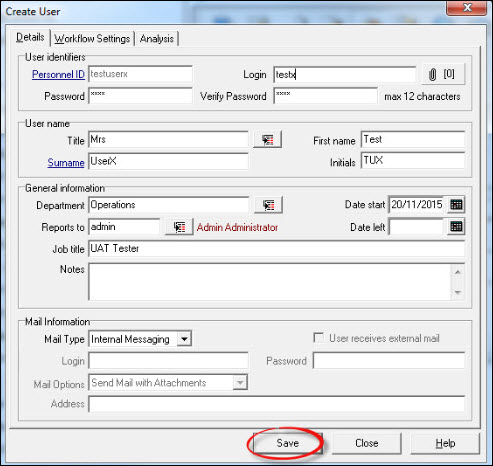
Repeat the process if creating other users. If not, press [Close] to exit from the "Create Member of Personnel" window.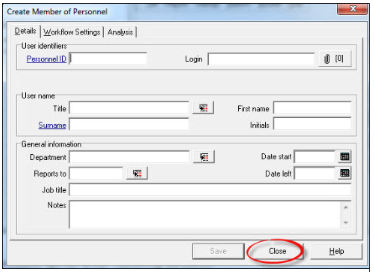
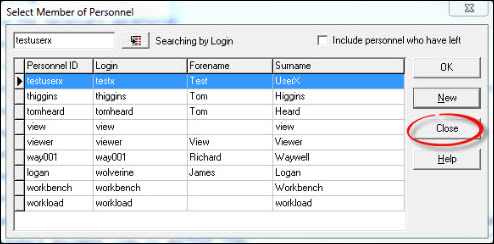
Press [Close] from the "Select member of Personnel" window to be returned to the Workbench Desktop.