New article
Recently updated
Changing Attribute Information When Selecting a Document to View

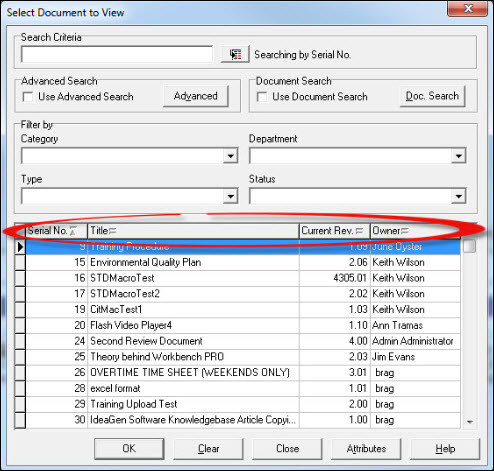
When selecting a document to view, certain attribute information is available at a glance. This can be configured to show just the relevant fields required. The screenshot below shows just four attributes; Serial No, Title, Current Rev. and Owner.
Other fields can be added from the User Preferences under the [File] menu and include;
Author
Checked Out?
Date of Last Issue
Extension
Issue Revision
Review Responsibility
Status
User Ref.
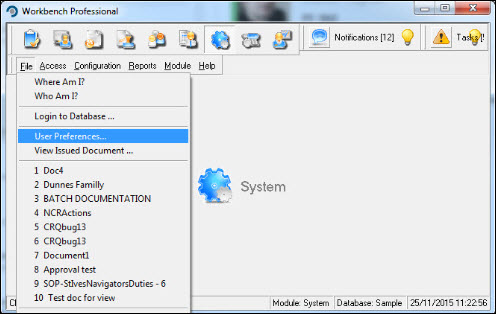
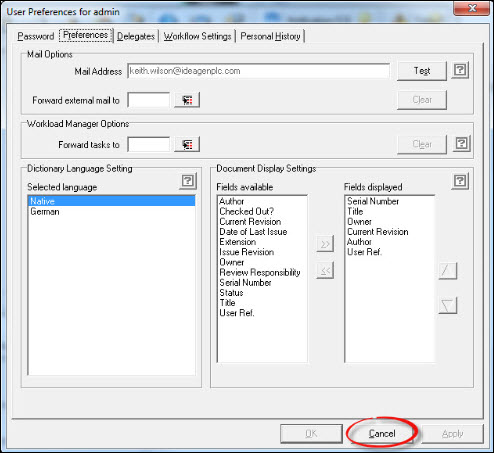
Select [File] [User Preferences...] from the menu, and the [Preferences Tab].
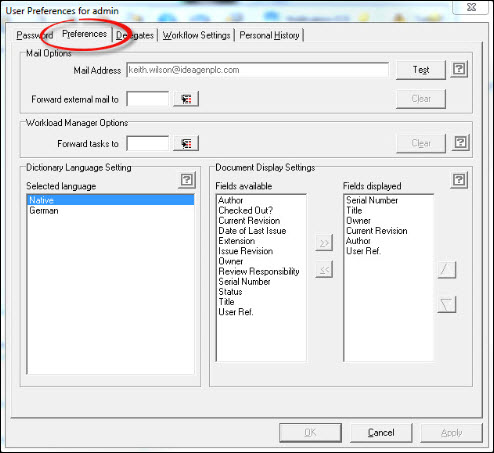
Fields displayed are visible in the window on the far right. Those that can be added are shown under the "Fields Available" section.
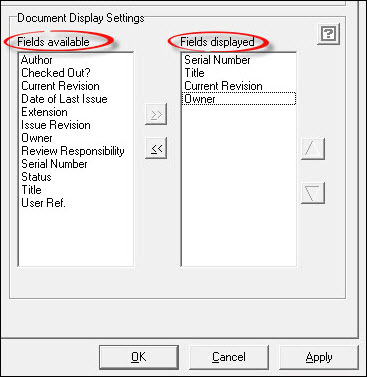
Double Click or highlight and press the >> button to add fields from the "Fields available" to "Fields displayed". Attributes can be removed by moving them from "Fields displayed" to "Fields available" in a similar manner. The screenshot below shows Author and User Ref. added.
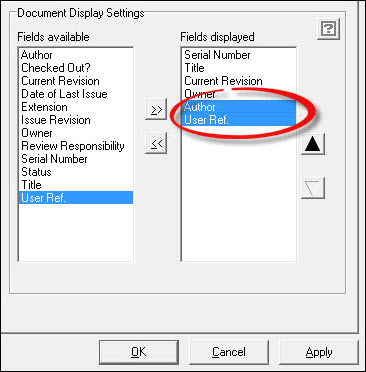
The order of appearance can also be changed using the  and
and  buttons. That is to say, the fields appear left to right when selecting documents, based on the top to bottom appearance in the "Fields Displayed" window. So, in the above screenshot, Serial Number will appear as the left column and User Ref. as the right.
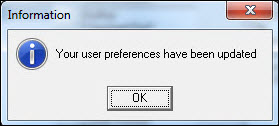
When all selections have been made press [Apply]. Respond [OK] to the Information message.
Press [Cance] to exit from the User Preferences.
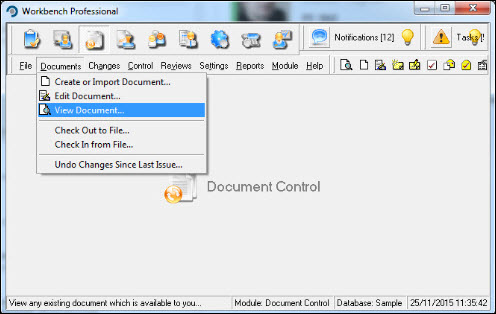
From the Document Control module select [Documents] [View Document...].
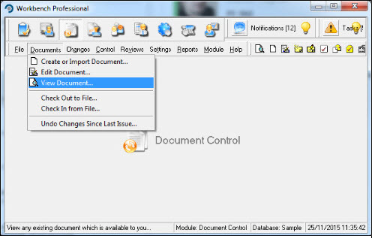
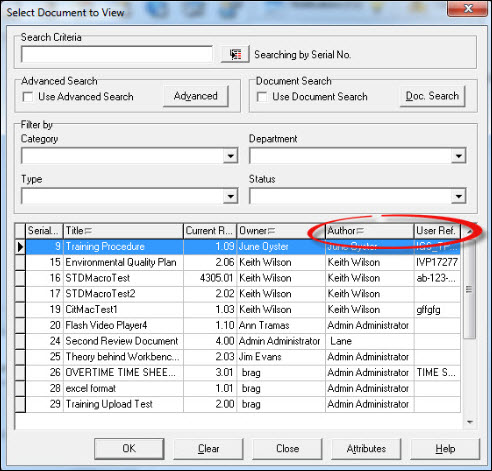
The additional fields now appear.