New article
Recently updated
Changing a Users Workbench Password

From the Workbench Desktop select [File] [User Preferences...] from the menu.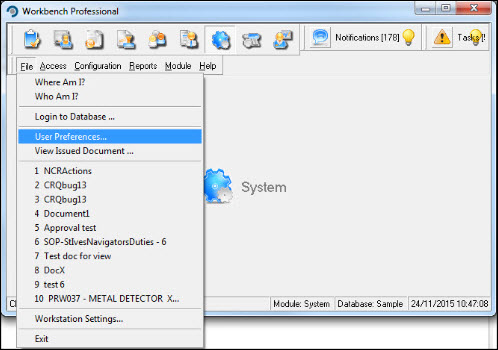
The User Preferences window opens and defaults to the [Password] tab. Enter the existing password into the Current Password field and the new password into the New Password field. Press [Apply].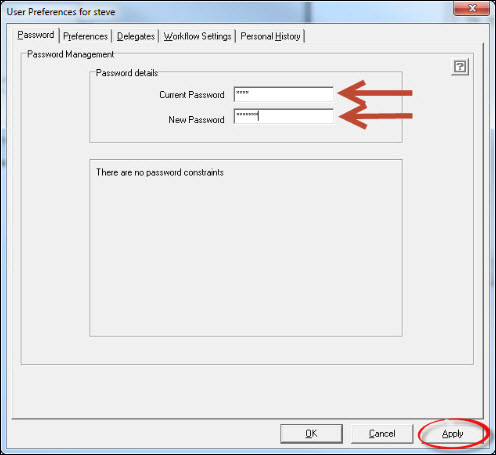
Confirm the new password and press [OK].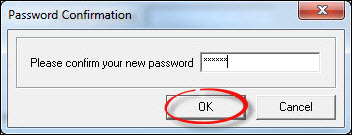
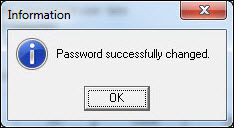
Respond [OK] to the Information message.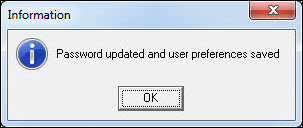
Press [Cancel] to exit from the User Preferences.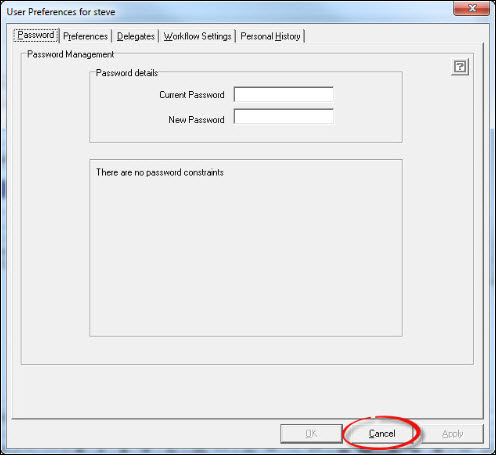
Assuming sufficient permissions have been granted, it is also possible to change a password from the System Manager module under the [Configuration] [User Logins] [Change Users Password...] menu. Note that all users passwords can be changed here.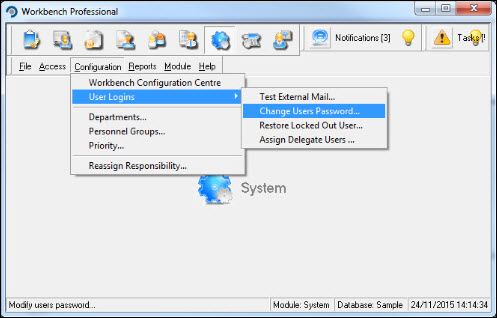
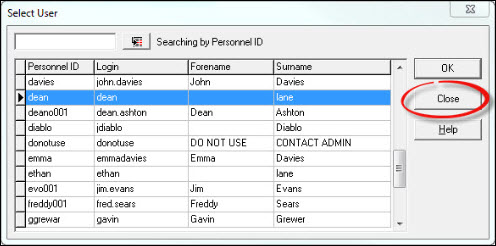
Select the user from the Select User window and press [OK].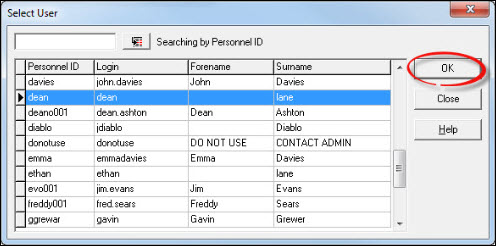
Proceed to enter and confirm a new password. Press [OK]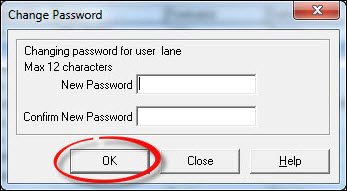
Respond [OK] to the Information message.
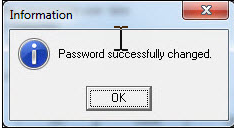
Press Close from the Select User window (or repeat the process to change another users password).