


New article
Recently updated
Withdrawing a Document

To withdraw a document from circulation (remove the last issued version from view) a Change Request raised must have been raised and approved.
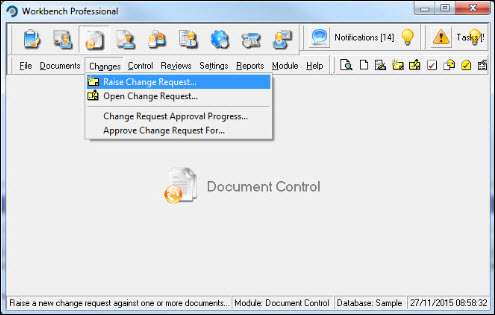
From the Document Control module, select [Changes] [Raise Change Request...] from the menu.
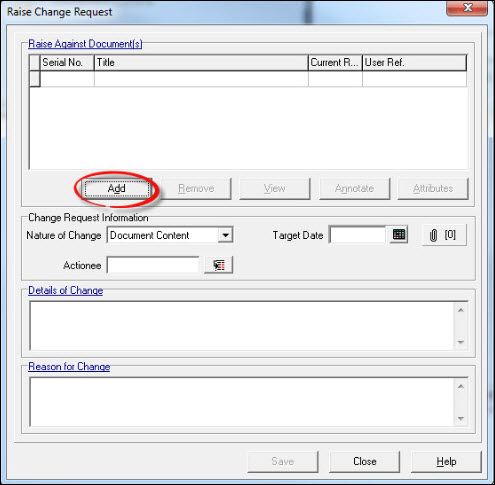
From the "Raise Change Request" window press [Add].
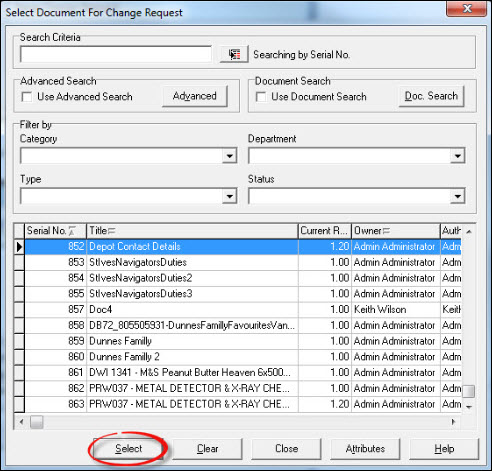
Highlight the document that is to be withdrawn and press [Select].
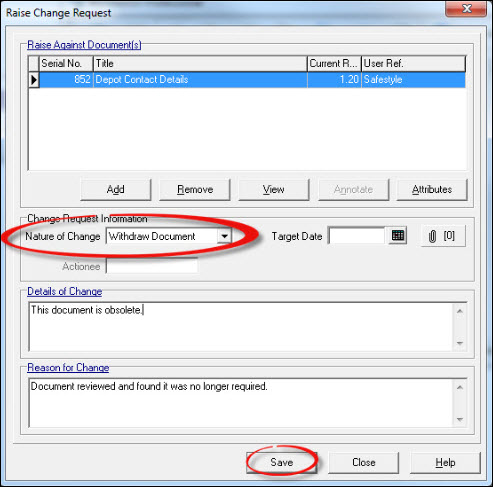
From the drop down box change the Nature of Change to 'Withdraw Document'.. Add a Target Date if required and complete the mandatory Details of Change and Reason for Change. Press [Save].
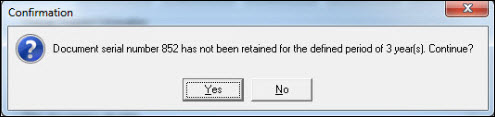
Depending on the age of the document, the following confirmation message may appear. Respond [Yes].
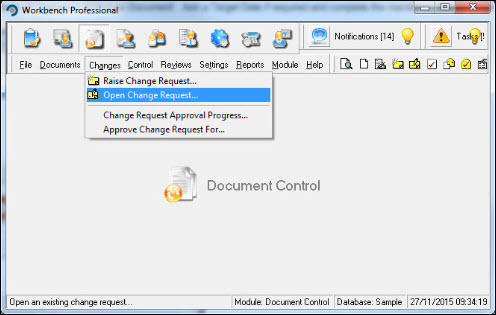
Select [Changes] [Open Change Request...] from the menu, or respond to the task that may have been sent to the Taskbox.
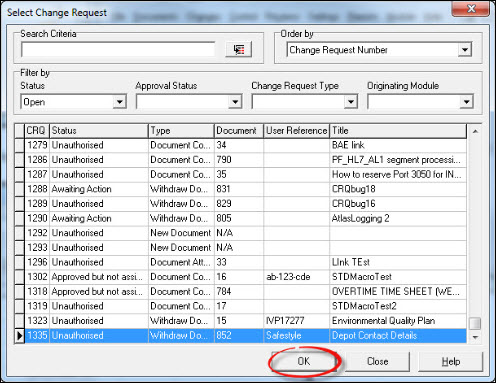
Locate the Change Request and press [OK].
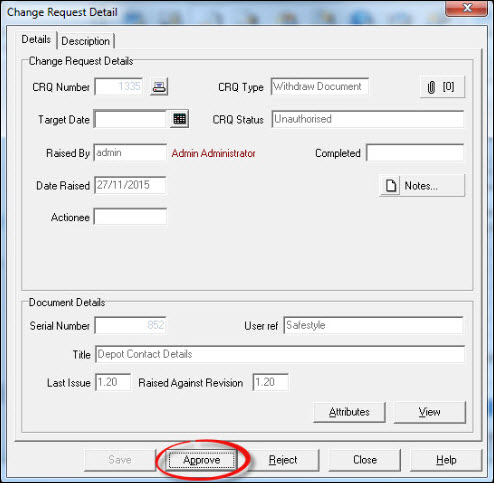
Press [Approve] from the "Change Request Detail" window.
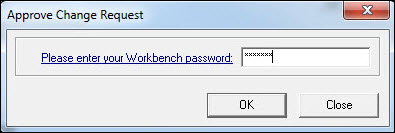
Enter your password and press [OK].
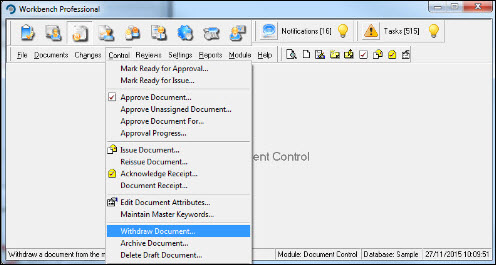
Press [Close] to exit the "Select Change Request" window. Select [Control] [Withdraw Document...].
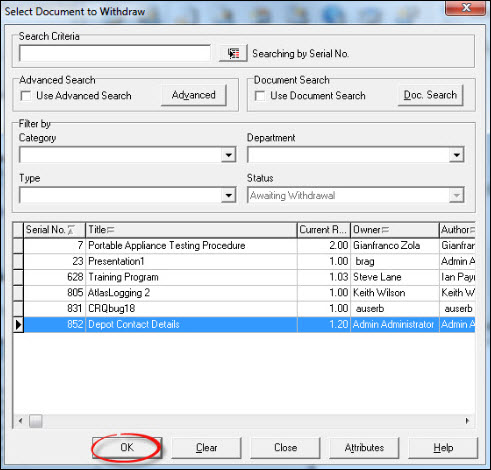
From the "Select Document to Withdraw" window, locate the document and press [OK].
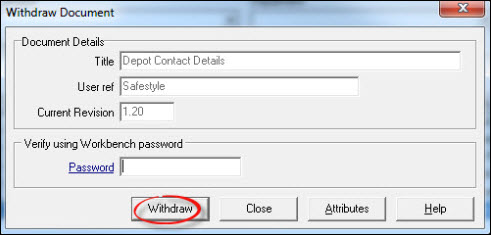
From the "Withdraw Document" window, enter your password and press [Withdraw].
The document has now been withdrawn. Press [Close] to return to the Workbench Desktop or select another document to withdraw from the available list.