


New article
Recently updated
Creating a New Document

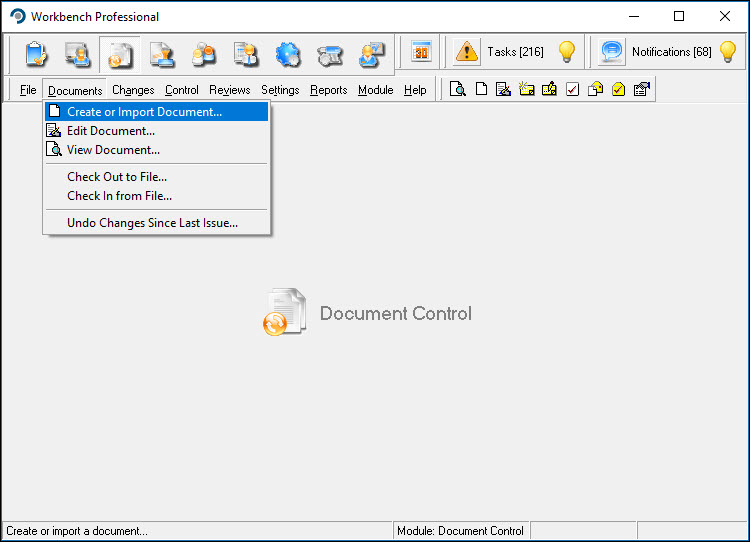
From the Document Control module select [Documents] [Create or Import Document...] from the menu.
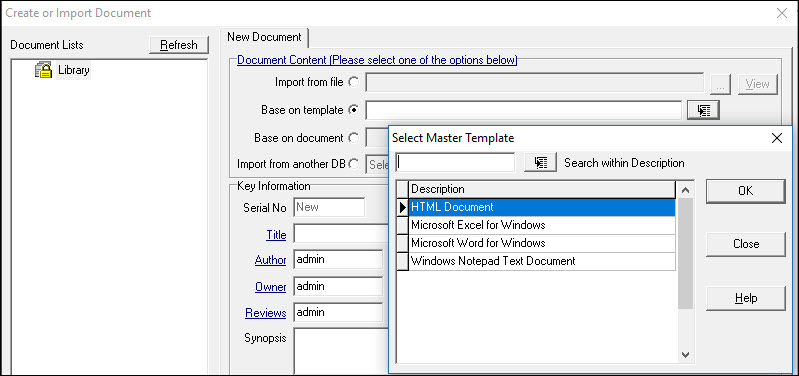
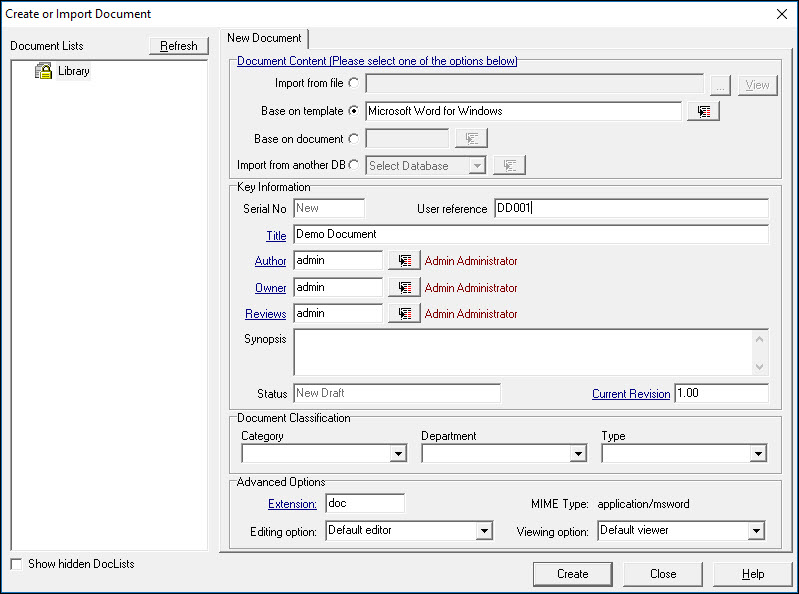
From the "Create or Import Document" window select either the Base on template or Base on document radio buttons. Base on template assumes that master templates have been created which can be used to form the basis of a document, and may contain information such as company logo, tables. macros, tags etc. Pressing the  button next to either of the options retrieves a list of documents for selection.
Base on template: select the required template and press [OK].
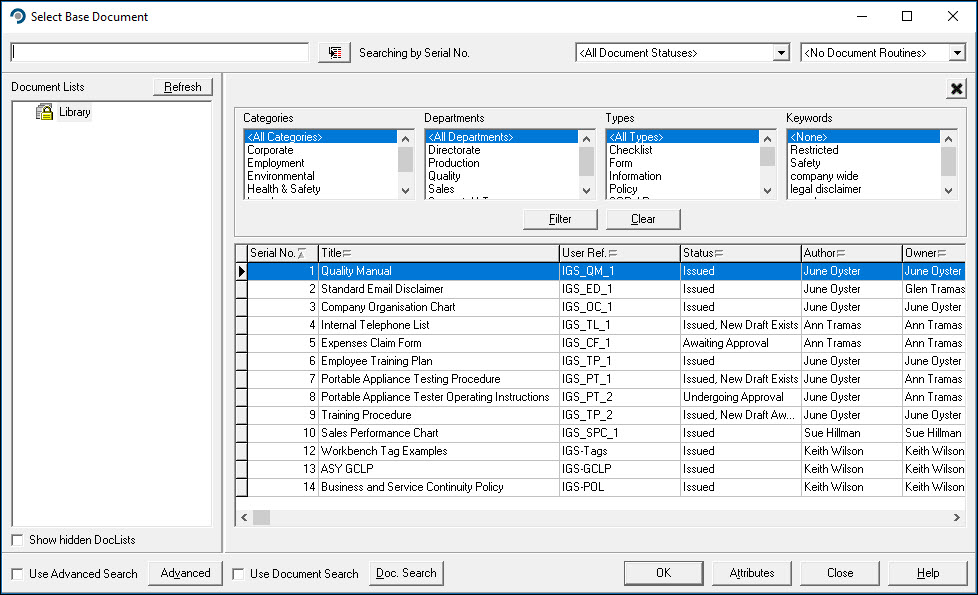
Base on document allows a document to be created that is based on one that already exists in the database. This can be used in situations where not only document formatting is required (as may be contained in a Master Template), but maybe a subset of information. For example there may be specific requirements or introduction that can be used. Select the document from the list displayed.
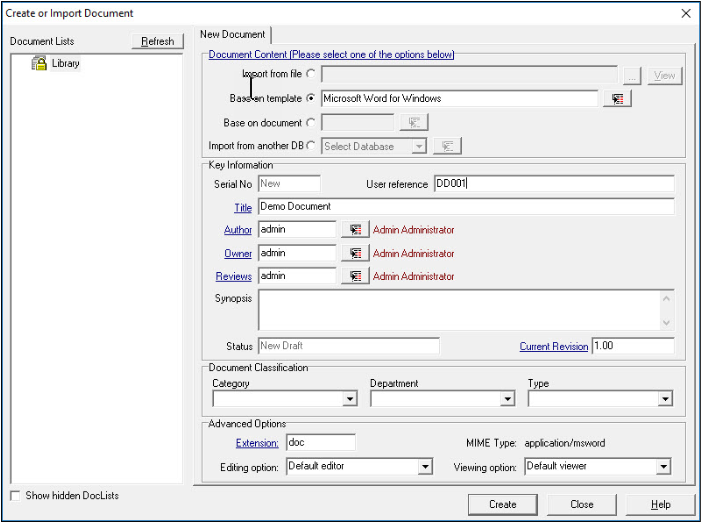
Having selected a template or document, proceed to complete the required fields. Note that basing the new document on an existing one gives it the same title - it can be overtyped at this stage. Author, Owner and Reviews can be reassigned if required. Press [Create].
Work through the Workflow Settings, Access, Workbench Office, Keywords, References, Analysis and Courses tabs, configuring them where appropriate. Each tab can be accessed either by clicking on it or pressing [Next].
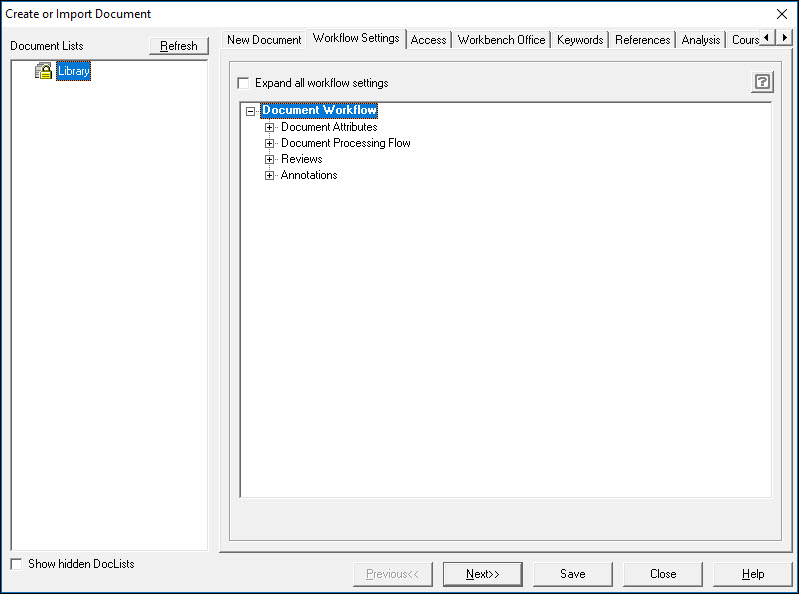
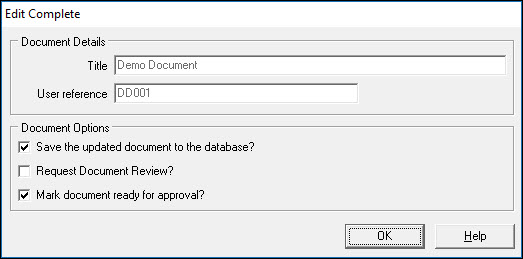
Press [Save] . The Document opens allowing it to be edited. Once changes have been made, save and close it. The Edit Complete box is presented whereby three options can be selected. Make a selection and press [OK].
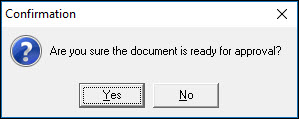
Respond [Yes] to the Confirmation message.
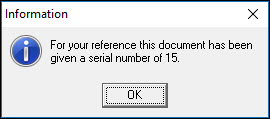
An Information message showing the document serial number is displayed. Press {OK].
The document has now been created.