


New article
Recently updated
How to Assign Delegates in Workbench

Delegates, who may approve documents or change requests on your behalf, are set up in two separate places, depending on whether you are setting them up for yourself or for other approvers.
- Setting up your own delegates is done via the Delegates page of the User Preferences dialog.
- System administrators (or other users with relevant access) may set up delegates for other users using [Configuration | User Logins | Assign Delegate Users].
Both dialogs default to allow all individual users and personnel groups to be delegates.
Access to the two levels of delegation is controlled in separate options by the administrator in the [Access] menu options (System Manager module). This means that users can be given access to set up their own delegates but are unlikely to have access to assign delegates for other users.
Please note: The administrator is allowed to approve documents and change requests on behalf of any user without the need for delegation to be set up.
Setting up delegates for yourself
Select [User Preferences] from the [File] menu and go to the [Delegates] tab. The Delegates dialog will appear showing a list of all users and groups with valid logins (apart from admin and the selected user). 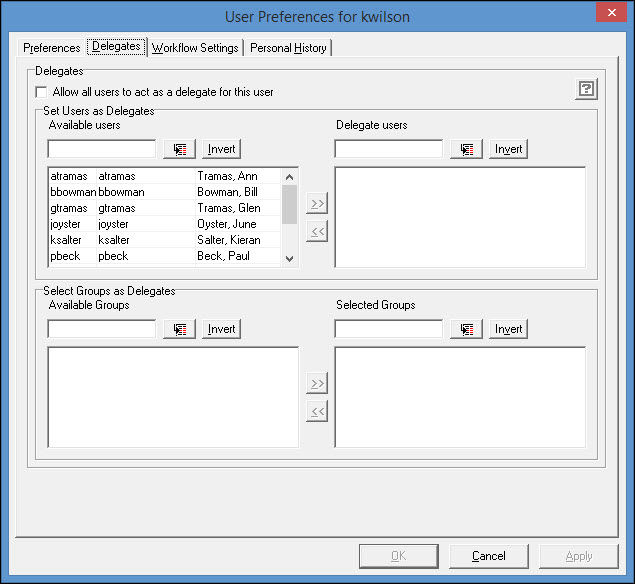
To select from lists, the check box marked Allow all users to act as a delegate for this user must be de-selected. Add or remove delegates by double-clicking or using the central arrow buttons. The list on the left hand side of the window shows users and groups available for delegation (you may have a combination of both lists). The right hand lists show selected delegates.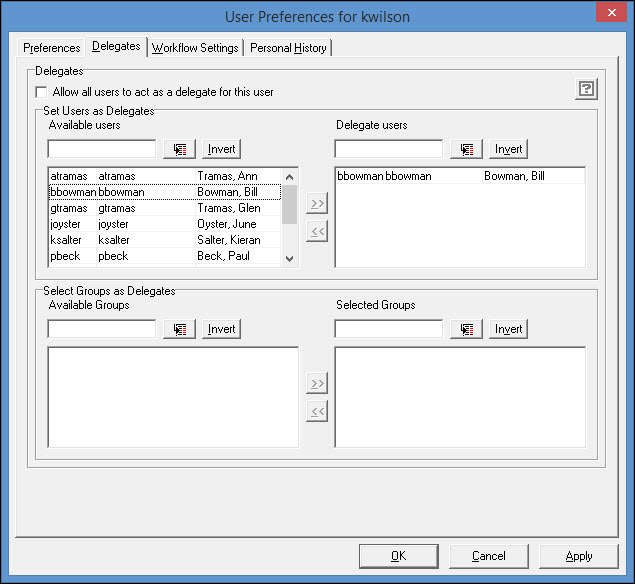
Click [OK] to save the selected delegates and close the dialog.
A 'Delegates changed' entry will be written to the Personnel History tab for the user. Right-click on this entry to reveal the names of delegates added or removed.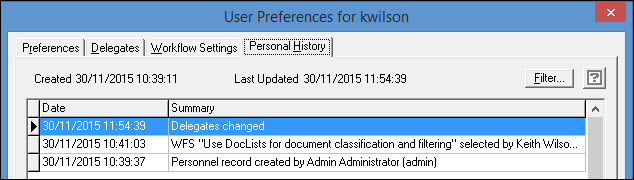
The only user(s) who will now be able to see, and therefore approve documents or change requests on behalf of the original user, will be those who have been nominated as delegates.
Setting up delegates for other approvers
Providing that you have been granted access to the Assign Delegate Users dialog you may also set up delegates for others as well as yourself.
Select Configuration | User Logins in the System Manager module and choose Assign Delegate Users.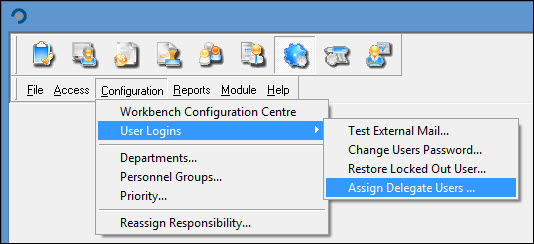
The Select Member of Personnel dialog will appear listing all users with a valid login.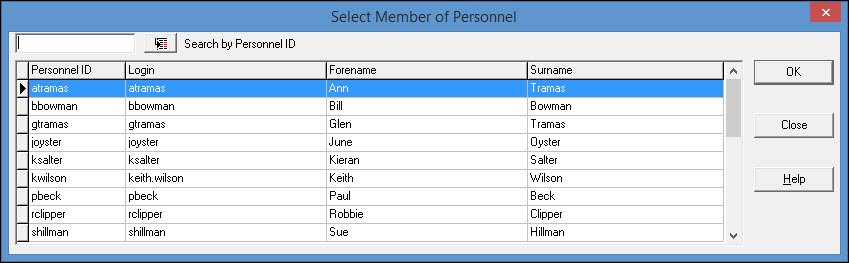
Select the user for whom you wish to assign delegates. Double-click or click [OK]. The Set Delegates dialog will appear showing a list of all users and groups with valid logins (apart from admin and the selected user).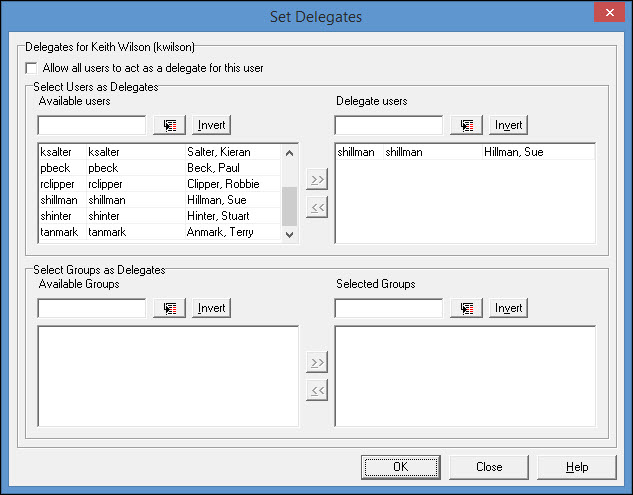
To select from lists, the check box marked Allow all users to act as a delegate for this user must be de-selected. Add or remove delegates by double-clicking or using the central arrow buttons. The list on the left hand side of the window shows users and groups available for delegation (you may have a combination of both lists). The right hand lists show selected delegates.
Click [OK] to save the selected delegates and close the dialog.