New article
Recently updated
How to mark a user as left in Workbench

Log into Workbench as admin, or a user with the appropriate access, and go to the [Personnel] module. From the menu go to [Record] and choose [Personnel], and when the Select Member of Personnel list appears double-click the users name to open the [Edit User] screen.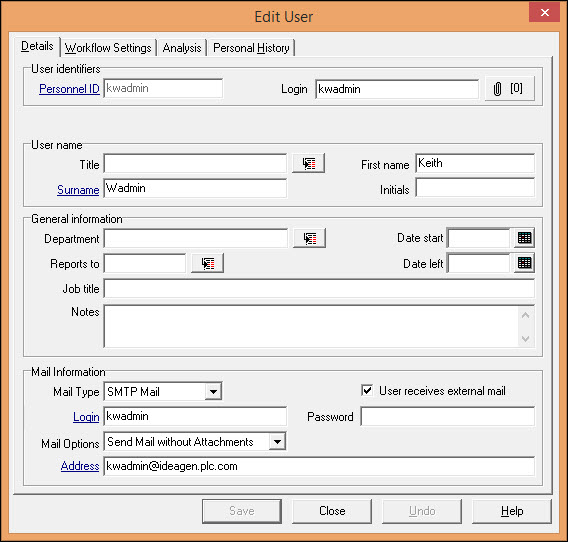
First of all, if the user has a Mail Type set to SMTP or Microsoft Mail, uncheck the 'User receives external mail' checkbox and then use the drop-down list to select Internal Messaging, then click [Save]. This will close the Edit User screen so you will have to open it again by double-clicking the name.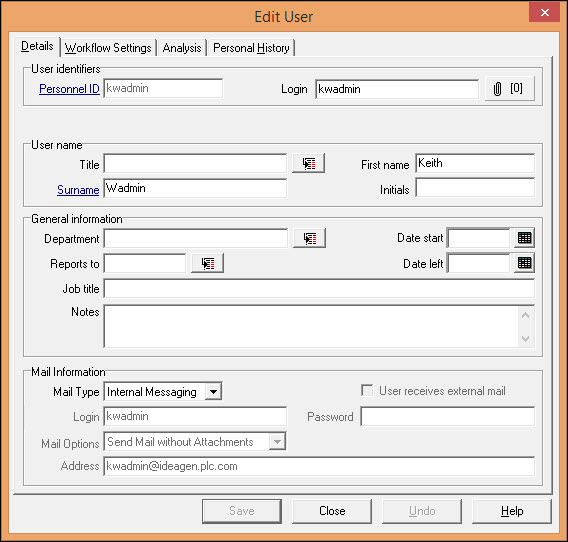
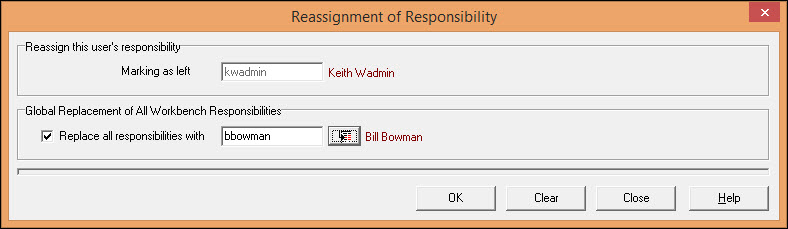
Enter a date into the Date left field and click [Save]. At this point, if there are any responsibilities to reassign, the Reassignment of Responsibility screen appears.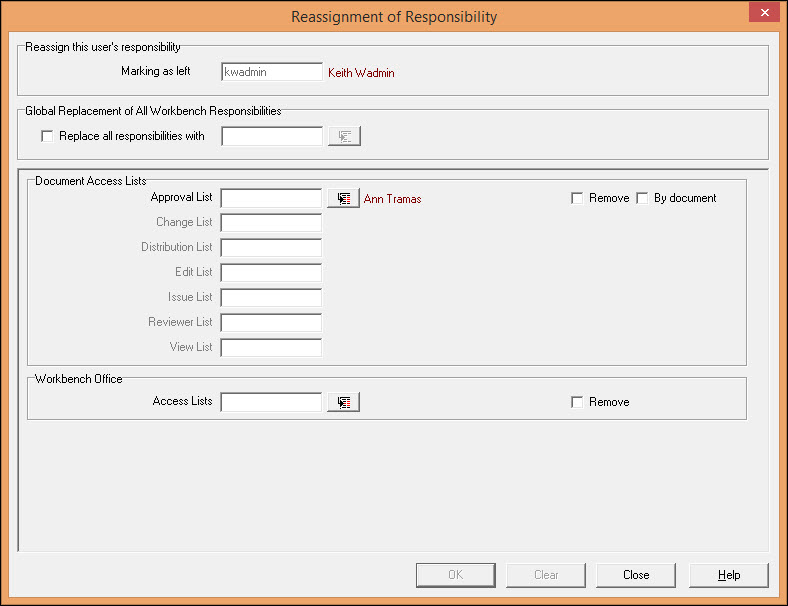
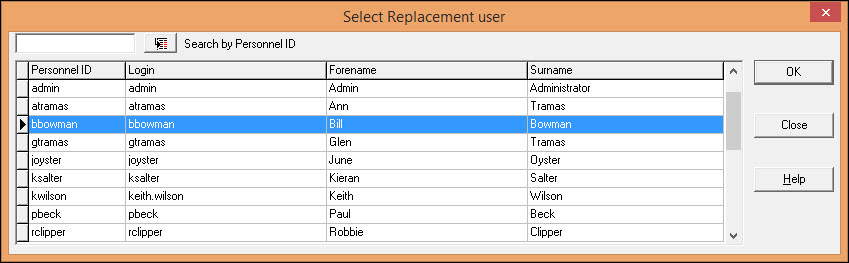
The individual lists that can be reassigned are denoted by the [Selection] button being available  . You can Globally Replace all the responsibilities by checking the 'Replace all responsibilities with' checkbox and clicking the [Selection] button and choosing the Replacement User from the list. Click [OK] then click [OK] again to complete the process.