


New article
Recently updated
Registering Equipment in Test and Calibration

Registration of equipment details
Select [Test and Calibration] module from icon bar or drop down menu.
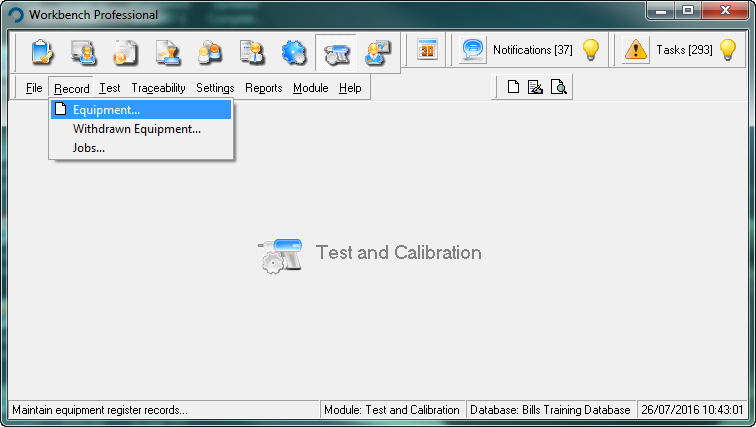
Select [Record] menu header and [Equipment] from the drop down menu list.
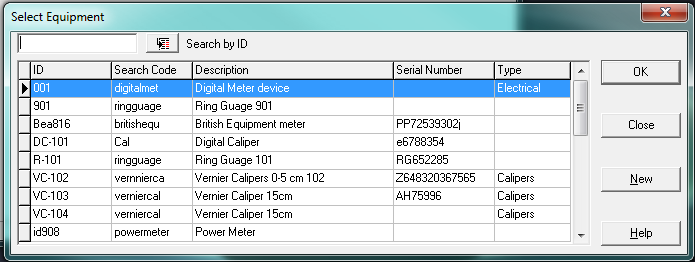
Select [New]
Mandatory fields (MUST be filled in) are shown in blue and are underlined.
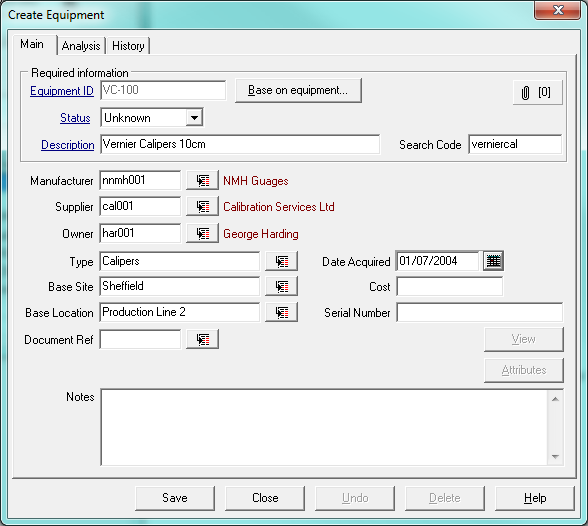
Enter relevant information
Equipment ID (must be unique)
Description (Equipment name)
(Search code can be used to sort and group equipment, or amended later if equipment is scrapped.)
The status of the equipment can be set at this initial stage as “OK”, if it is new and can be put into service immediately, otherwise mark as “Unknown” and test or calibrate it at this stage.
Manufacturer
Supplier
Owner
Where equipment is used
When purchased
Cost
Serial number
Cross reference to the document control module gives the ability to make the link between the equipment and the procedure or work instruction held within Workbench Document Control Module on how and where the equipment can be used.
Adding an attachment to an Equipment Item
Some Equipment comes with its own documentation often in the form of statutory test certificates or certificate of compliance from the manufacturer. Often these documents will be in paper format so they need to be scanned into an electronic format. These documents can then be attached to each item of equipment through the attachments button.
Activate the “attachment” button on the screen.

Selecting the [New] button in the Attachments area of the screen activates the Attachment Details screen, where the attachment or file detail can be entered.
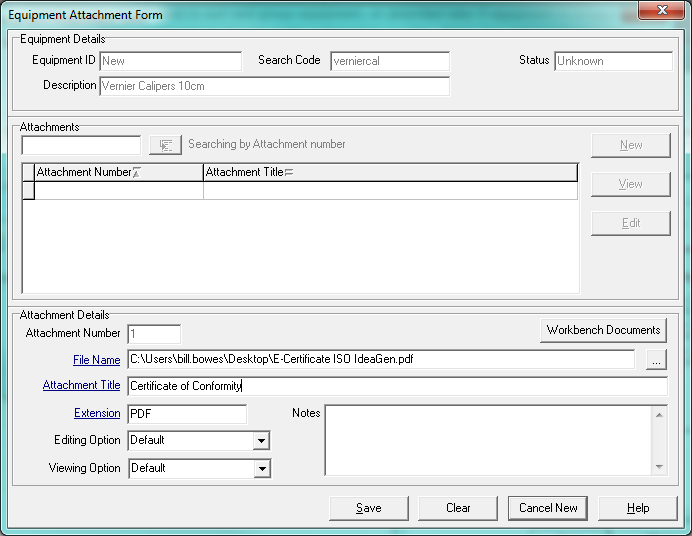
Search for the relevant file on the network or local computer, or select a document from the Workbench Controlled Document list, give it a title, and select the [Save] button.
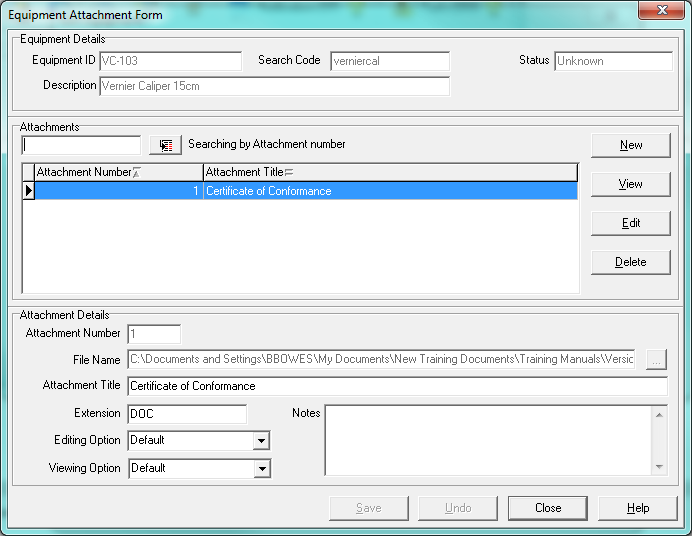
Repeat for each file to be attached to the Equipment item.