


New article
Recently updated
Setting up IBOConsole on a Workbench client PC

Create a new folder on the root of the C:\ drive called workbench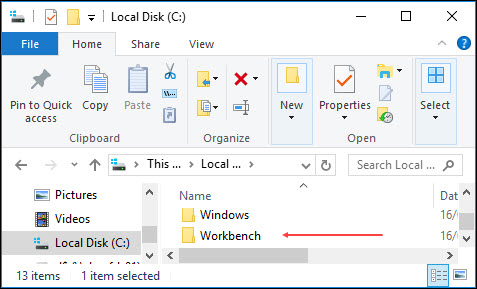
In the File Explorer address bar type %appdata% and then press Return.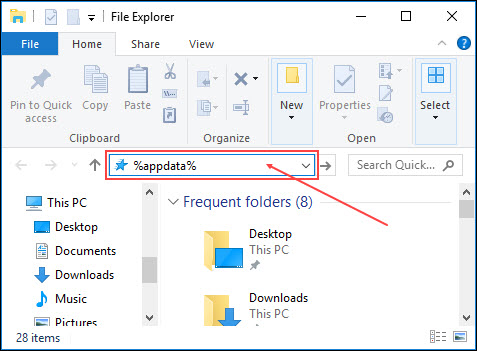
In the folder that opens, locate the WBP.CFG file and open it with Notepad. Scroll to the bottom of the file and add the following text to the end:
[System]
DBLogLevel=2
DBLogFile=C:\workbench\WBOut.txt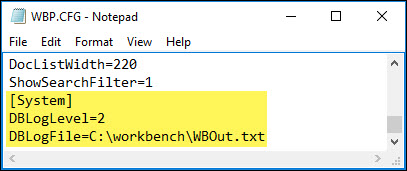
Save the file and close it.
Run Workbench and log into the database you wish to connect to with IBOConsole. This will have created an output file in the Workbench folder called WBOut-(date).txt. double-click to open it in Notepad.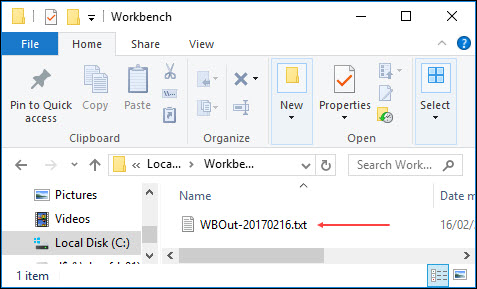
At the beginning of the file the database location is displayed. You need to copy the path later, so just minimize the output file rather than closing it.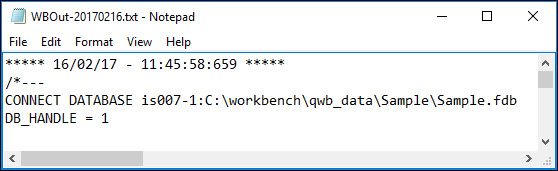
In File Explorer, locate the IBOConsole.exe file in the C:\Program Files\Ideagen\WBPro\Atlas Client\Client Executable folder. Double-click to open it.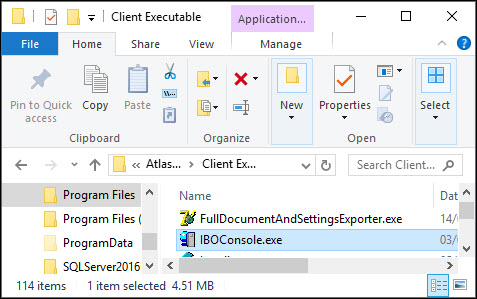
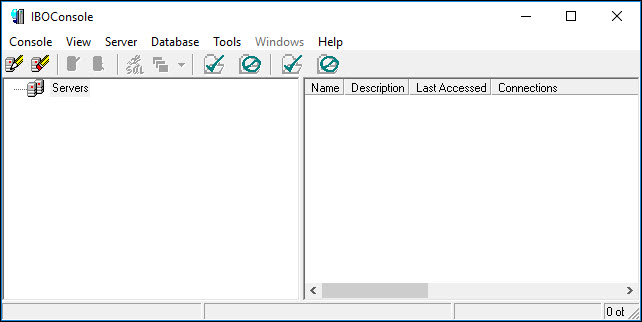
Right-click on Servers and choose Register.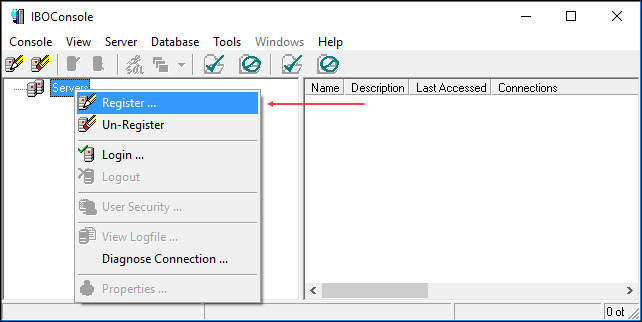
On the Register Server and Connect dialog, select the Remote Server radio button, enter the Workbench server name, change the Network Protocol to TCP/IP, enter an Alias Name and a Description. The User Name is SYSDBA and the password is masterkey. Click OK to save your settings and you should now be connected (denoted by a Green check mark against the server name).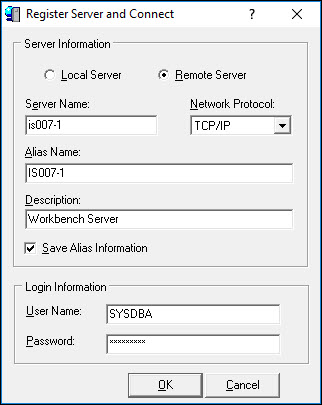
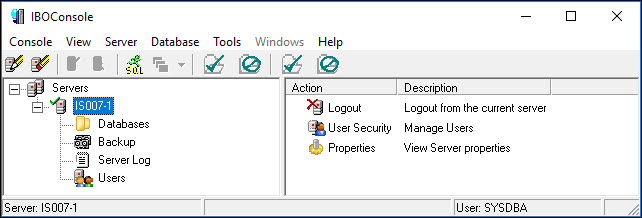
To register a database, right-click Databases and then choose Register.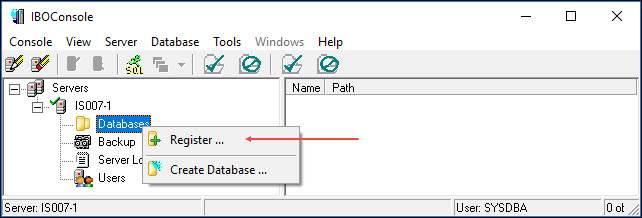
From the output file, copy the path to the database but do not include the server name and the colon from the beginning of the path.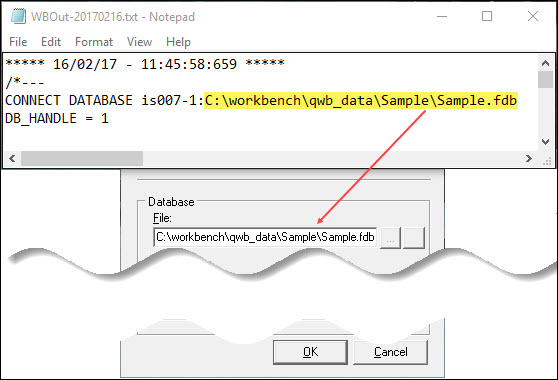
Enter an Alias name for the database, and then just click the OK button, there is no need to enter any more information.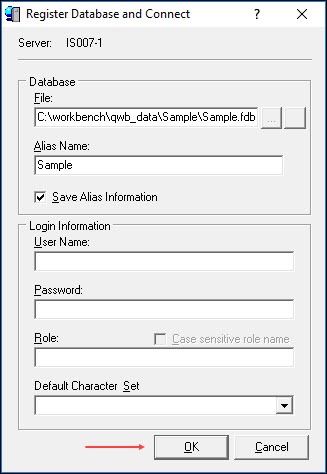
The database will now appear in the list under databases. This whole process can be repeated for any databases you need to work with.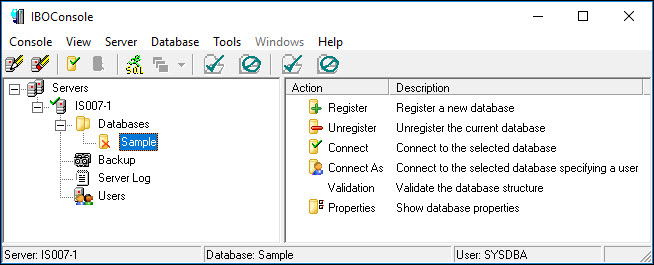
In order to connect to the database, double-click on the alias name. Once it is connected there is a Green check mark next to the alias name. You must be connected to the database before trying to run SQL scripts.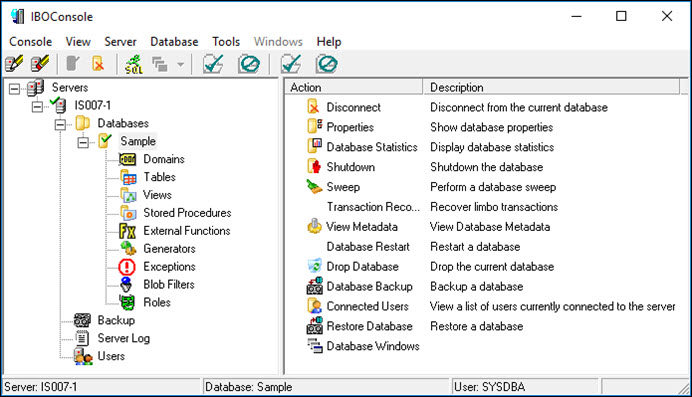
Click the SQL icon on the menu bar.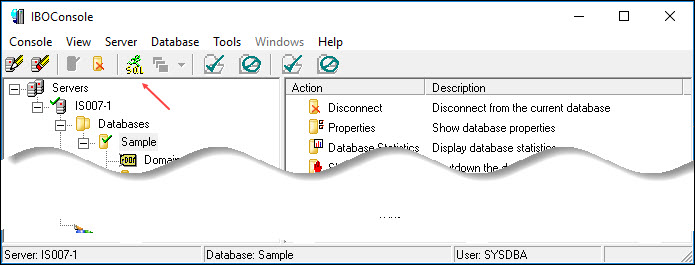
The database you are connected to is displayed in the bottom of the Interactive SQL window. You can now run scripts and query the database.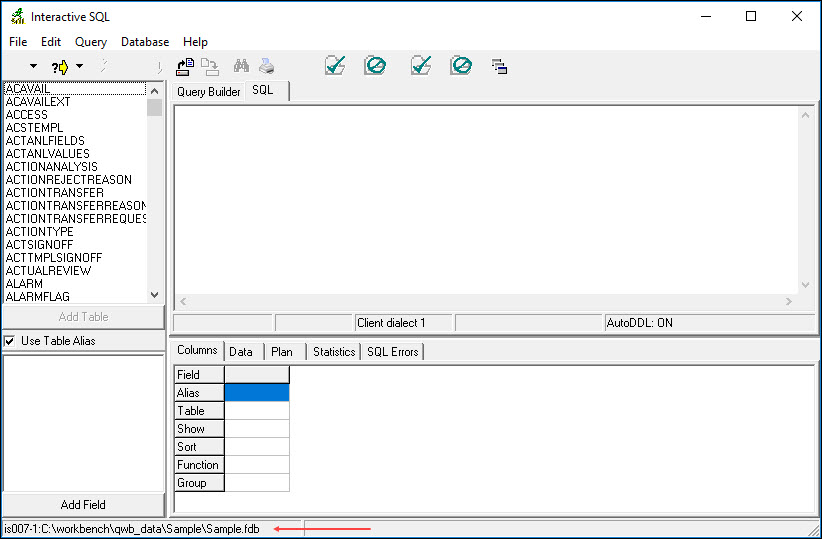
If you are not connected you will not be able to run scripts.