


New article
Recently updated
Importing a New Document

From the Document Control module select [Documents] [Create or Import Document...] from the menu.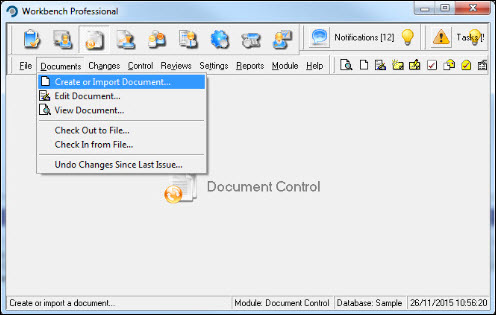
From the "Create or Import Document" window press the  button.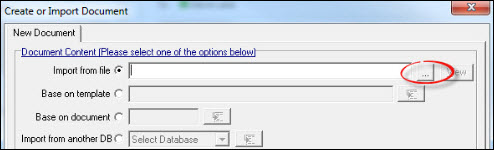
Browse to the document that is being imported and press [Open].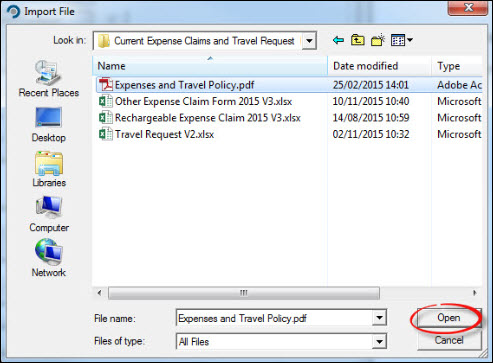
The document path will now show in the Import from file field.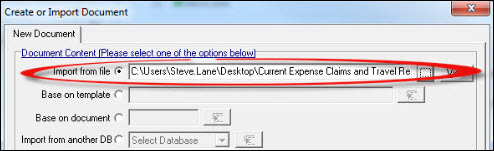
Proceed to add attribute information, changing the Title, Author, Owner and Reviews if necessary. Press [Create].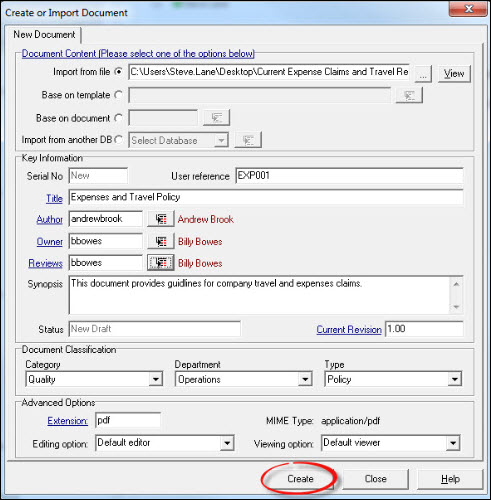
Work through the Workflow Settings, Access, Workbench Office, Keywords, References, Analysis and Courses tabs, configuring them where appropriate. Each tab can be accessed by either clicking on it or by pressing [Next].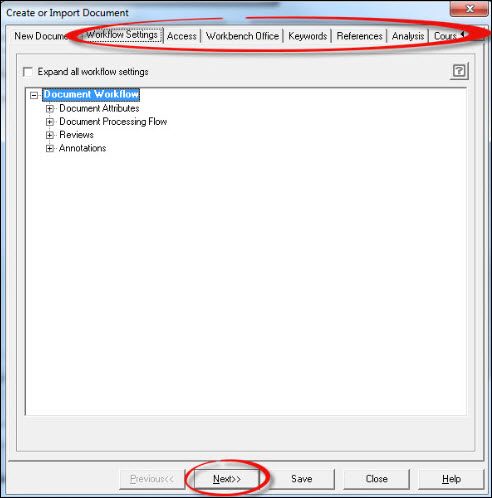
Press [Save] and respond appropriately to the Confirmation message.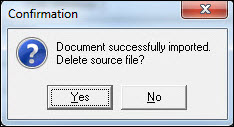
The Document opens so it is possible to make any changes to it at this point or simply close it to continue. The Edit Complete box is presented, whereby three options can be selected. Make a selection and press [OK].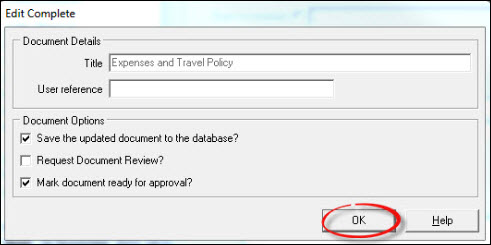
Respond [Yes] to the Confirmation message.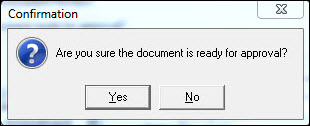
An Information message showing the document serial number is displayed. Press [OK].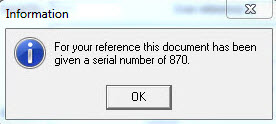
The document has now been imported.