


New article
Recently updated
Checking a .doc out and a .docx Back into a Workbench Database

From time to time it may be necessary to change the editor extension of a document, or replace it with a completely new version. For either of these tasks it is recommended that the document is checked out of the database, changes made, and checked in again. The document needs to have a draft version present as this is the version that is checked out of the database.
From the Document Control module select [Documents] [Check Out to File...] from the menu.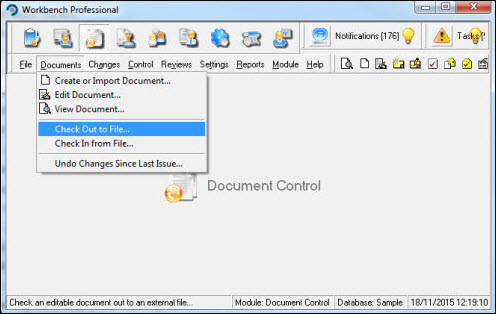
The "Select Document to Check Out" window opens. Highlight the document intended for checkout and press [OK].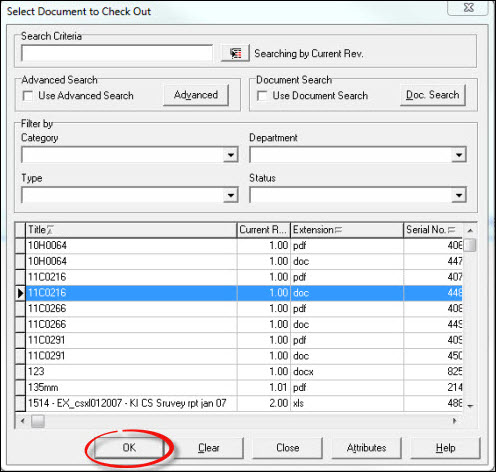
Increase the document revision level from the "Edit Document" window if required and press [OK].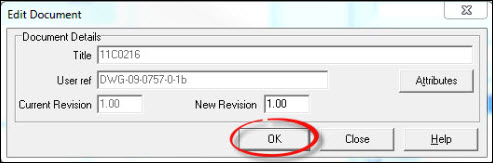
Press [Check Out] from the "Check Document out to File" window.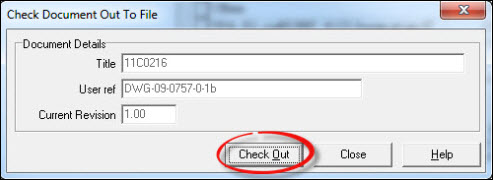
Proceed to save the document to a suitable location.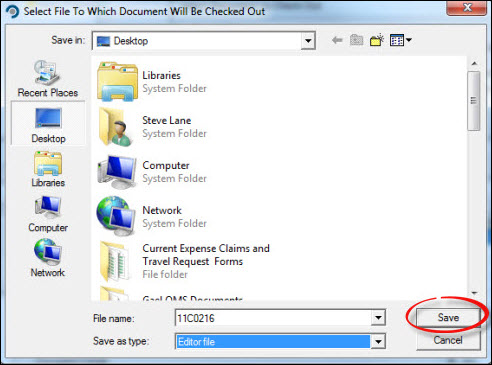
After changing the document extension or editing the contents, the document needs to be put back in the database. From the Document Control module select [Documents] [Check In from File...] from the menu.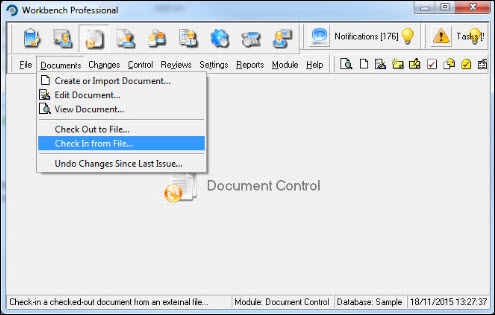
Highlight the required document and press [OK].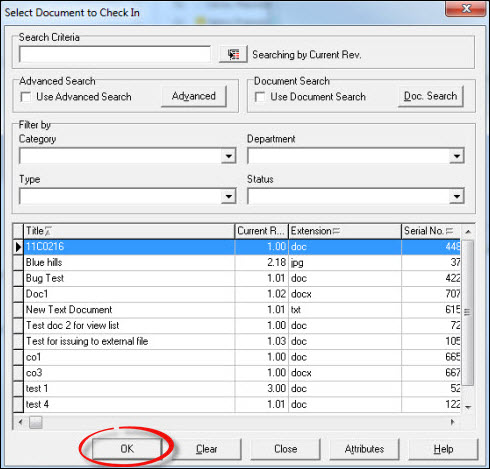
From the "Select file to check in" window, locate the document that has been changed. Note that Workbench will show the same document that was checked out in the "Check in from". As the extension will have changed (or a new document created) press the [...] button next to the file path and browse to the correct document. It may be necessary to change the "Files of type:" to show All Files. Press [Open].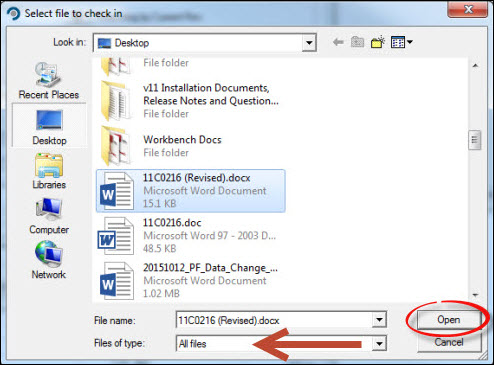
Press the [Check In] button.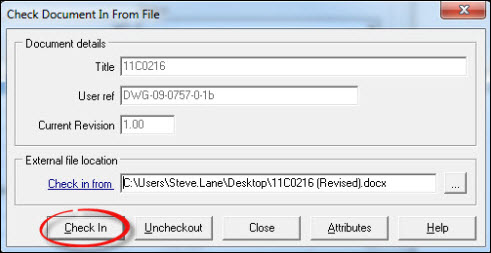
Your system may be configured to view the document attributes. Press [Close] after reviewing them.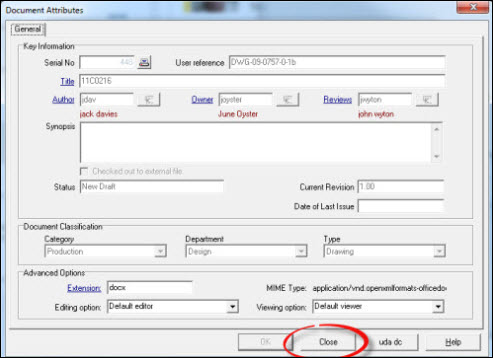
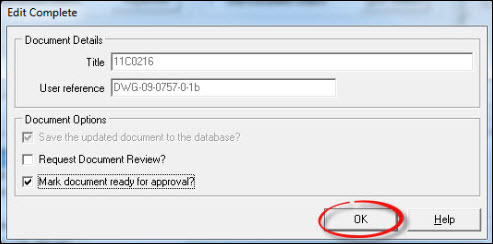
The "Edit Complete" window opens. From here it is possible to request a review or mark the document as ready for approval (it is not possible to do both). Assuming no review is required tick the Mark document ready for approval? box and press [OK].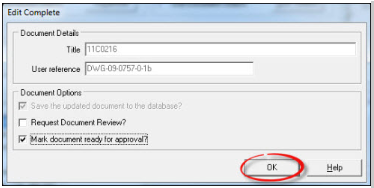
If all is OK respond [Yes] to the confirmation message.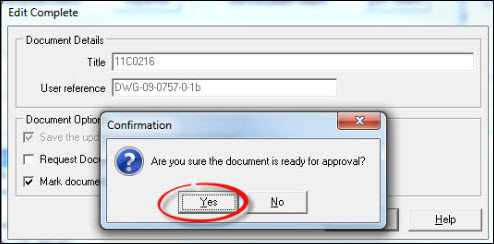
A further confirmation message allows the original source file to be deleted. Respond [Yes] or [No].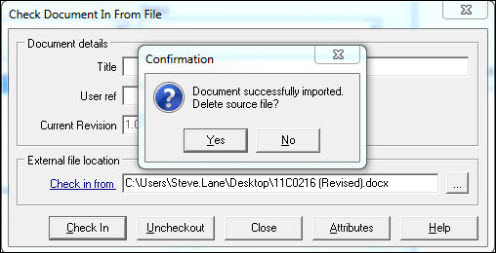
Press [Close] from the "Select Document to Check In" window.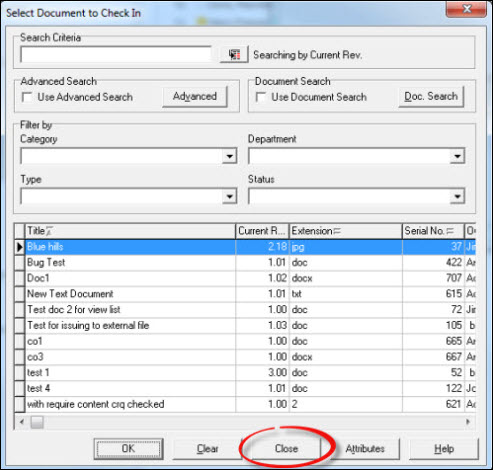
The amended document is now back in the database. Proceed to the approve and issue stages.