


New article
Recently updated
Approving a Document

Documents can be approved either from the [Control] [Approve Document...] menu item or from the users Tasks box. For the purpose of this article the process will be carried out via the Tasks box.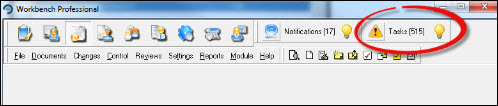
Click on the  icon to open the "Tasks" window. 'Double Click' the relevant task to open it.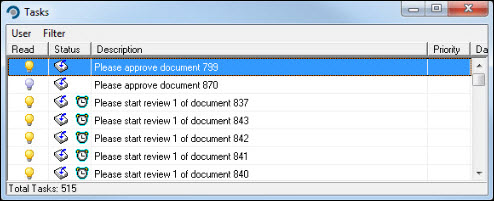
From the "Approve Document" window, comments can be added by means of the "Approve" tab if necessary. Approval can also be rejected at this stage which will put the document back into draft mode to be edited further. Rejecting a document requires the user to enter a rejection reason which is written to the document history. To proceed with the approval enter a password and press [OK].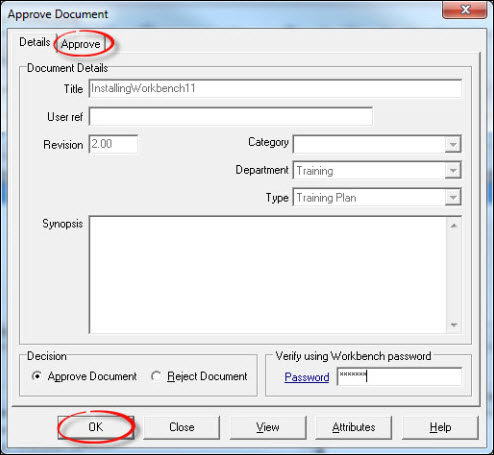
Workbench may be configured to require that a document is viewed before it can be approved. If this is the case press [OK] to the "Information" message...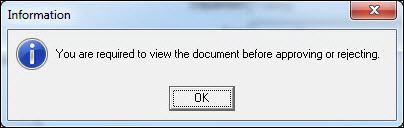
...and press [View].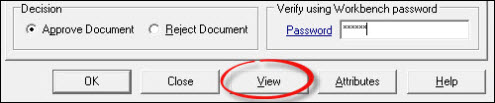
After viewing the document press [OK] again.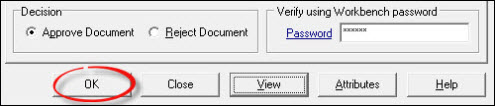
If there are other people defined on the Approval List, they will also need to approve the document before it can be issued. If no-one else exists on the Approval List, the document will be available to issue either via the Tasks box or [Control] [Issue Document...] menu item.