


New article
Recently updated
Setting up Questionnaires

Enabling the Workflow.
Workbench Questionnaires can be created or added to a document's attributes at the time the document is created or imported, at the time it is being edited or any time prior to it being issued. However, before this is possible the option needs to be enabled. This can be done in two places, depending on if you are associating questionnaires with all or specific documents.
To enable for all documents, go to the System Manager module and select [Configuration] [Workbench Configuration Centre] from the menu. 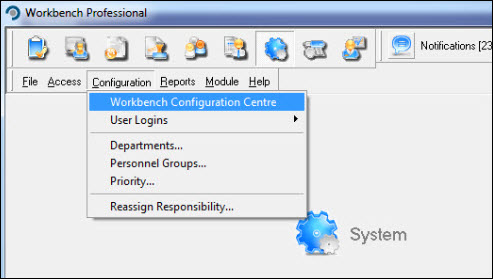
Expand New Document Business Rule Settings, Document Attributes and Workbench Questionnaires workflow. Tick Use Workbench Questionnaires and assign values to;
Number of random questions to ask? (0=all questions will be asked). This means that if you create a 'pool' of ten questions you can define how many of those questions will be asked when the questionnaire is invoked. In the example below, it has been set to four. If set to 0, all questions require answering.
Number of correct answers required? (0=all questions must be answered correctly). This determines how many of the questions asked must be answered correctly before receipt of acknowledgement is returned. In the example below it has been set to two. If set to 0, all questions must be answered correctly.
To sum the example up, four questions from the 'pool' will be selected out of which two must be the correct answer. Only if this criteria is met will successful acknowledgement be allowed. Press [Apply] to accept the configuration and [OK] to the "Information" message.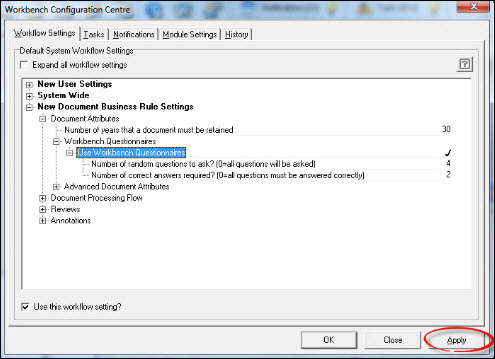
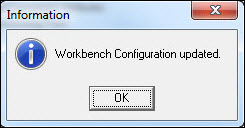
Press [Close] to exit from Workbench Configuration Centre.
If questionnaires are only required for specific documents, workflow is enabled from the individual document attributes. From the Document Control module select [Control] [Edit Document Attributes...] from the menu.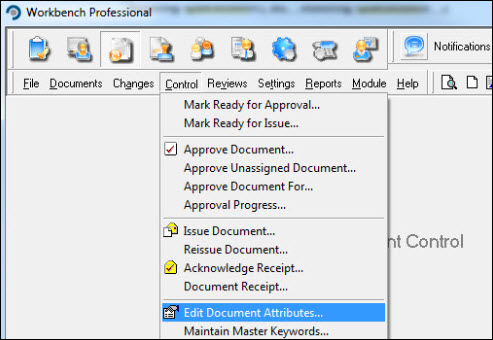
Locate the document and press [OK].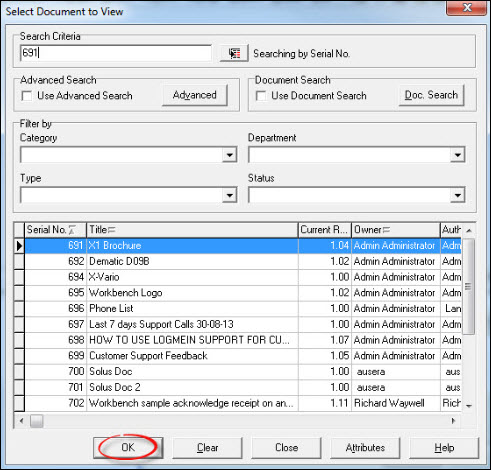
Select the [Workflow Settings] tab and expand the Document Attributes and Workbench Questionnaires workflow. Tick Use Workbench Questionnaires and assign values as explained previously. Press [OK].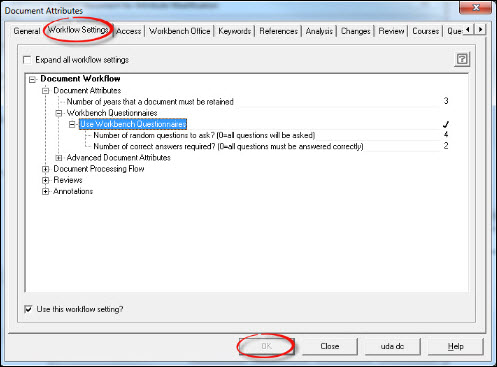
Repeat for further documents or exit from the "Select Document for Attribute Modification" window.
Creating a Questionnaire.
If a questionnaire is being created at the time a new document is imported, it is possible to do this from the attributes at the creation stage. Using the  button, scroll right to make the "Questionnaire" tab visible and select it.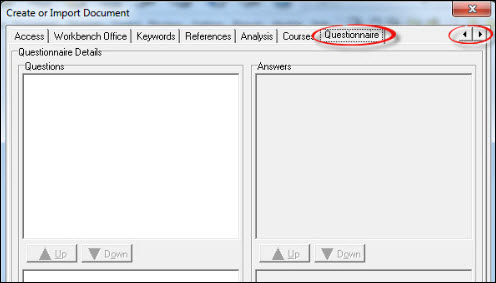
If creating it from the document attributes, select [Edit Document Attributes...] from the [Control] menu in Document Control, locate the document and press[OK].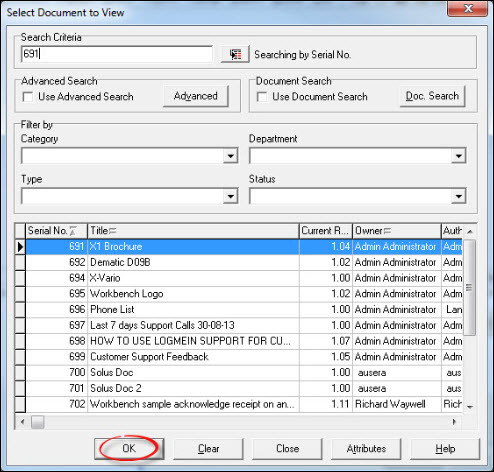
Select the [Questionnaire] tab.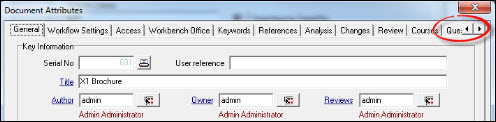
Press the [New Question] button and enter a question. Press the [New Answer] button to add each answer. Having completed the question, press [OK] and repeat the process until all questions have been added. Press [Close] to exit. Questions and answers can be deleted using the appropriate button. To amend a question or answer, simply highlight the text and overwrite it, remembering to press [OK] to save any changes.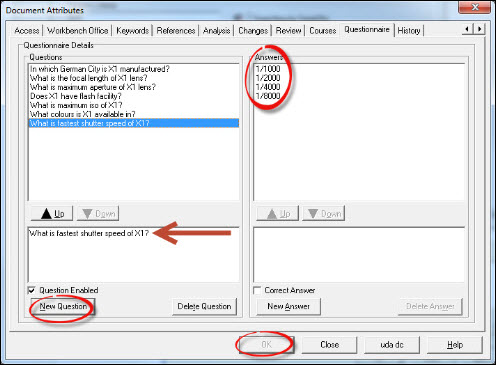
Responding to a Questionnaire.
The document needs to be fully approved an issued as questionnaires are invoked at the Acknowledge Receipt stage of the document cycle. From the Task box, external email or [Acknowledge Receipt] menu item, locate the document and proceed to Acknowledge Receipt. After viewing the document the "Questionnaire" window opens. Complete and press [Accept Answers].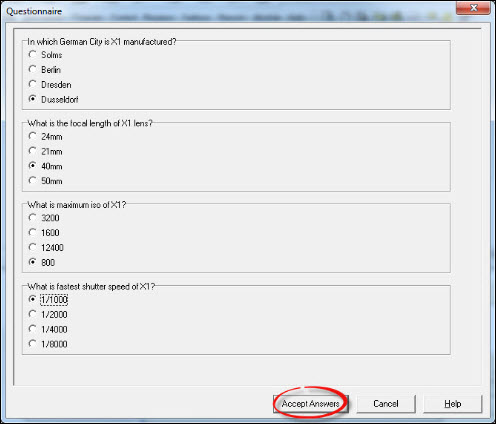
If too many questions are answered incorrectly, a message will be displayed. Press [OK].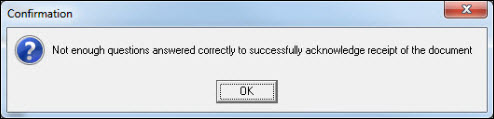
This returns the user to the "Acknowledge Receipt" window whereby the process can be invoked again by pressing the [Yes] button to Acknowledge Receipt.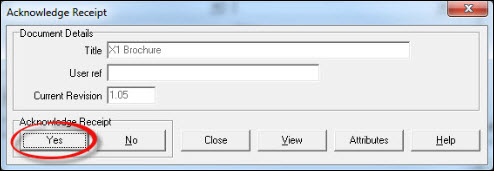
When enough questions have been answered correctly, a confirmation is displayed. Press [OK].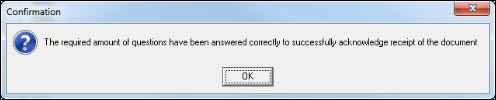
Exit from the Task, email or menu.
Auditing a Questionnaire.
Information pertaining to the questionnaire is written away to the document history and is available for viewing by anyone who has sufficient access. From the Document Control module select [Document] [View Document...] and proceed to locate the document to which the questionnaire has been completed.. Press the [Attributes] button.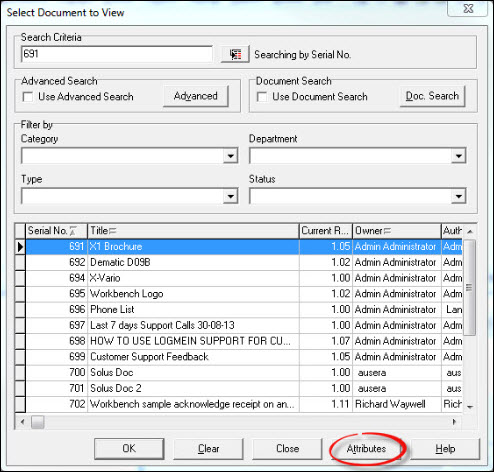
Select the "History" tab.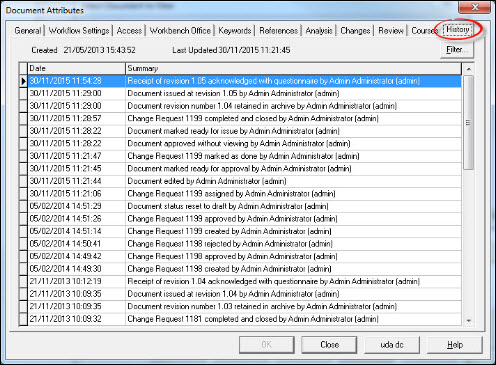
'Right Click' on the acknowledgement line to reveal the information relating to the questionnaire.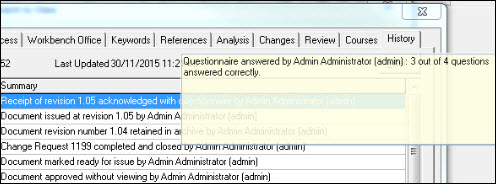
Press [Close] to exit from the Document Attributes. Press [Close] again to return to the Workbench Desktop.