


New article
Recently updated
How to Show and Hide columns in DocList View

In order to use this feature, you must have the DocList View enabled in Document Control, see Changing to the DocList view in Workbench
This is the standard DocList View in Workbench Document Control.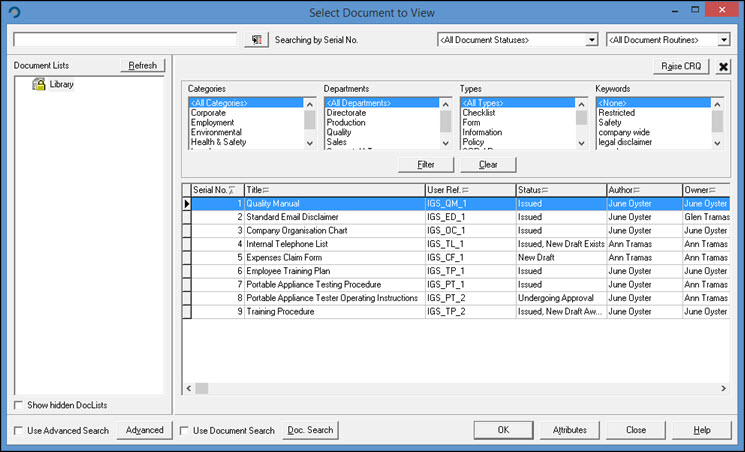
To change the order of the columns displayed, left-click and hold on the column heading and then 'drag and drop' to where you want the column to be displayed, The Black, vertical line is used as a guide, and the column will be positioned to the right of the black line when you release the mouse button.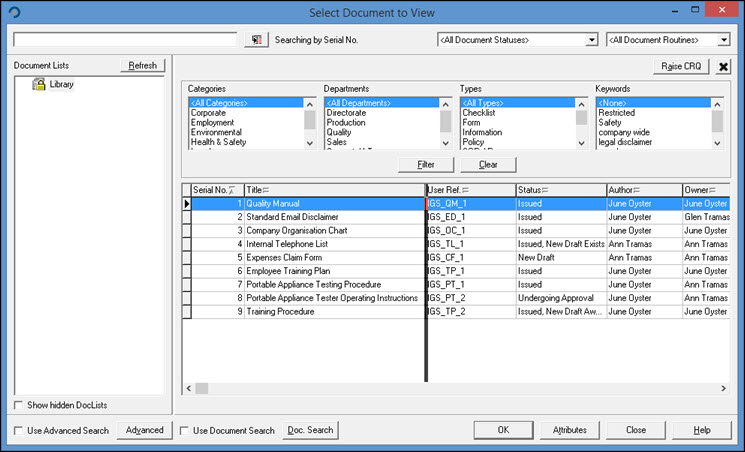
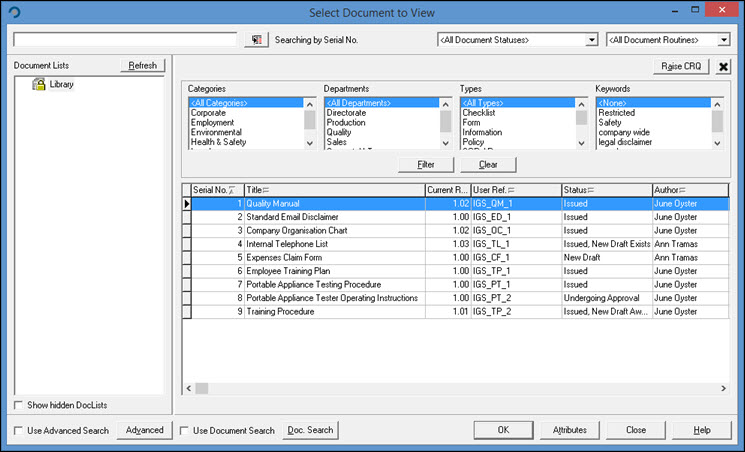
To hide a column, right-click and choose [Hide Column].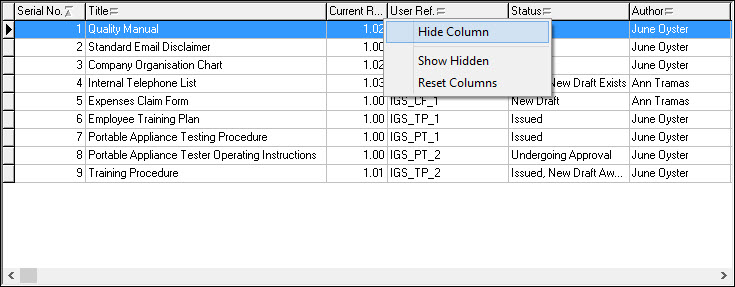
[Show Hidden] will turn back on the previously hidden columns in the last place they were located. [Reset Columns] will show all columns and the default order.
Sorting a column is done by clicking on the column title bar, this will set that column as the default sort order. The default is denoted by the Arrow symbol with a line either above or below.
For example: Sorted by Title in Descending order.
Sorted by Title in Ascending order.
Sorted by Serial No. in Ascending order.